




CrossFire
Members
-
Joined
-
Last visited
Everything posted by CrossFire
-
I love Strike's idea
-
Dude. Did you have to break LCPDFR?
-
How can you declare that? It's not your thread.
-
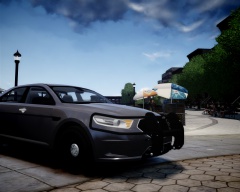
From the album: Grant's Models
Original Pushbar and wrap by BXbugs123/Trooper Dashie Edited to Police Interceptor wraparound by Grant Matos -
-
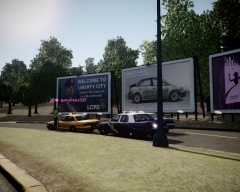
From the album: New Mexico State Police Clan (NMSPRP)
-
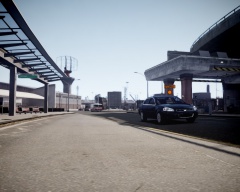
From the album: New Mexico State Police Clan (NMSPRP)
-
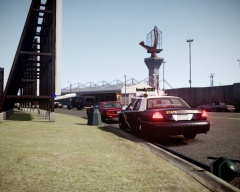
From the album: New Mexico State Police Clan (NMSPRP)
-
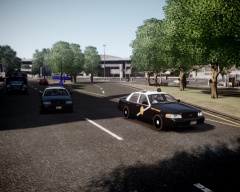
From the album: New Mexico State Police Clan (NMSPRP)
-
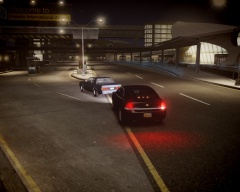
From the album: New Mexico State Police Clan (NMSPRP)
-
It is the day in which Mongolia became independent.
-
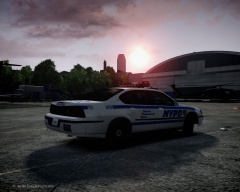
From the album: CrossFire's Pics
Playing MP with Him1250 and Jetski343 when I came across a wild sunset. -
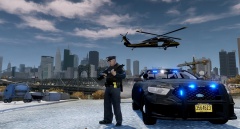 How do you get the taser?
 -
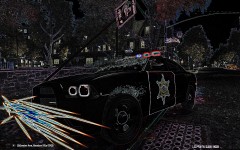 Woah
Woah -
I misunderstood the question I guess... BTW Ineseri, radio Friday is starting early
-
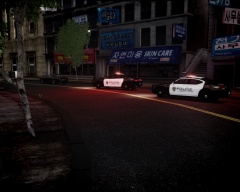
From the album: CrossFire's Pics
-
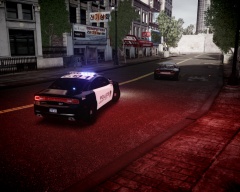
From the album: CrossFire's Pics
-
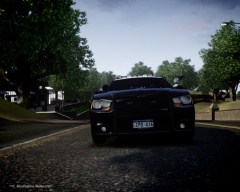
From the album: CrossFire's Pics
-
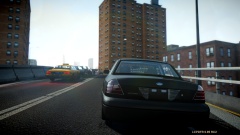 Is that 1.0.4.0? If you're using 1.0.7.0, what ENB?
 -
Sam has really thought it through! 900th post :D
-
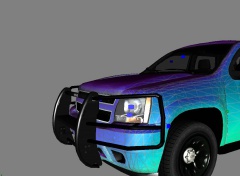
From the album: Grant's Models
Original Wraparound by Bxbugs123/ Trooper Dashie Edited to Tahoe Wraparound by Grant Matos -
Personally, I prefer ELS, but EVLS uses coronas so you can actually wreck your car. I'm fine if I cant wreck my car, I won't get chewed out by the supervisor :P
-
We all know it will be released for PC, there's no question. If they made $800 Million in the first 24 hours on consoles, imagine PC.
-
To both ineseri and sanjar: to change your trainer color/font, go to the second options menu in trainer, on the left look for something like "change trainer color/font" and there you go! See post above the quotes, forgot to quote you all lol
-
 Nice! Good choice of ENBs!


