
Crizby
Members
-
Joined
-
Last visited
Everything posted by Crizby
-
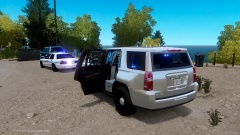 Haha maybe, I am not aware of that rule, hopefully they excuse my poor reading. Yeah I mean, it looks like a box and all, but when I tried out the all blue lights set-up it just looked fantastic :)
 -
From the album: LCPD's new 2015 Chevy Tahoe PPV
LCPD recently ordered 5 models of Chevrolet's new PPV Tahoe. The models were to be specifically designed for their K-9 unit with a slicktop light configuration. The first three Tahoe's arrived earlier this week, however this is the first time the public gets a chance to see what the new $64,000 PPV looked like. The new Tahoe's were put in service as soon as they arrived in LC. These are just 5 of LCPD's newer fleet, don't expect to see a CVPI next time you dial 9-1-1. This is a fictional story and I have no idea what-so-ever if the price is reasonable or ever the real price for a slicktop K-9 equiped 2015 Tahoe, so please don't criticize my numbers as they came directly from the LCPD's official statement :P I did not make the vehicle (You can find the vehicle in the spoiler below), only changed the colors of the texture(s) who came with the car and replaced the license plate. I also changed the "Emerglighs_emis" so that I could have a "only blue set-up". I would like to thank all the creators of this vehicle, I've never really liked the 2015 Tahoe design, however a slicktop version with the blue lights just looked so good. Thank you for reading this :) -
LCPD just recieved their new 2015 Chevy Tahoe's. They're unmarked and specially ordered for their K-9 unit.
-
One of the new Tahoe's seen assisting in a routine traffic stop
-
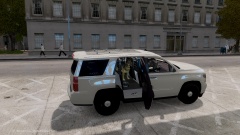 LCPD's new 2015 Chevy Tahoe PPV's
-
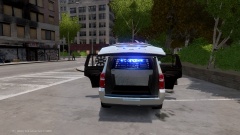 LCPD's new 2015 Chevy Tahoe PPV's
-
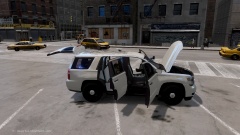 LCPD's new 2015 Chevy Tahoe PPV's
-
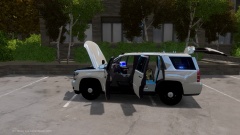 LCPD's new 2015 Chevy Tahoe PPV's
-
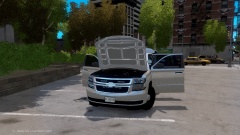 LCPD's new 2015 Chevy Tahoe PPV's
-
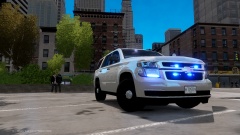 LCPD's new 2015 Chevy Tahoe PPV's
-
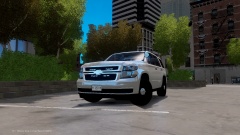 LCPD's new 2015 Chevy Tahoe PPV's
-
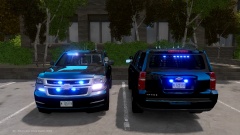 LCPD's new 2015 Chevy Tahoe PPV's
-
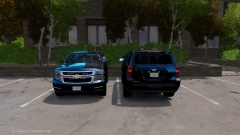 LCPD's new 2015 Chevy Tahoe PPV's
-
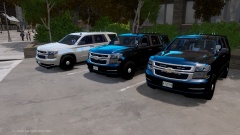 LCPD's new 2015 Chevy Tahoe PPV's
-
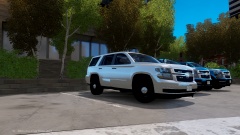 LCPD's new 2015 Chevy Tahoe PPV's
-
-
From the album: LCPD's new 2015 Chevy Tahoe PPV
LCPD recently ordered 5 models of Chevrolet's new PPV Tahoe. The models were to be specifically designed for their K-9 unit with a slicktop light configuration. The first three Tahoe's arrived earlier this week, however this is the first time the public gets a chance to see what the new $64,000 PPV looked like. The new Tahoe's were put in service as soon as they arrived in LC. These are just 5 of LCPD's newer fleet, don't expect to see a CVPI next time you dial 9-1-1. This is a fictional story and I have no idea what-so-ever if the price is reasonable or ever the real price for a slicktop K-9 equiped 2015 Tahoe, so please don't criticize my numbers as they came directly from the LCPD's official statement :P I did not make the vehicle (You can find the vehicle in the spoiler below), only changed the colors of the texture(s) who came with the car and replaced the license plate. I also changed the "Emerglighs_emis" so that I could have a "only blue set-up". I would like to thank all the creators of this vehicle, I've never really liked the 2015 Tahoe design, however a slicktop version with the blue lights just looked so good. Thank you for reading this :) -
From the album: LCPD's new 2015 Chevy Tahoe PPV
LCPD recently ordered 5 models of Chevrolet's new PPV Tahoe. The models were to be specifically designed for their K-9 unit with a slicktop light configuration. The first three Tahoe's arrived earlier this week, however this is the first time the public gets a chance to see what the new $64,000 PPV looked like. The new Tahoe's were put in service as soon as they arrived in LC. These are just 5 of LCPD's newer fleet, don't expect to see a CVPI next time you dial 9-1-1. This is a fictional story and I have no idea what-so-ever if the price is reasonable or ever the real price for a slicktop K-9 equiped 2015 Tahoe, so please don't criticize my numbers as they came directly from the LCPD's official statement :P I did not make the vehicle (You can find the vehicle in the spoiler below), only changed the colors of the texture(s) who came with the car and replaced the license plate. I also changed the "Emerglighs_emis" so that I could have a "only blue set-up". I would like to thank all the creators of this vehicle, I've never really liked the 2015 Tahoe design, however a slicktop version with the blue lights just looked so good. Thank you for reading this :) -
From the album: LCPD's new 2015 Chevy Tahoe PPV
LCPD recently ordered 5 models of Chevrolet's new PPV Tahoe. The models were to be specifically designed for their K-9 unit with a slicktop light configuration. The first three Tahoe's arrived earlier this week, however this is the first time the public gets a chance to see what the new $64,000 PPV looked like. The new Tahoe's were put in service as soon as they arrived in LC. These are just 5 of LCPD's newer fleet, don't expect to see a CVPI next time you dial 9-1-1. This is a fictional story and I have no idea what-so-ever if the price is reasonable or ever the real price for a slicktop K-9 equiped 2015 Tahoe, so please don't criticize my numbers as they came directly from the LCPD's official statement :P I did not make the vehicle (You can find the vehicle in the spoiler below), only changed the colors of the texture(s) who came with the car and replaced the license plate. I also changed the "Emerglighs_emis" so that I could have a "only blue set-up". I would like to thank all the creators of this vehicle, I've never really liked the 2015 Tahoe design, however a slicktop version with the blue lights just looked so good. Thank you for reading this :) -
From the album: LCPD's new 2015 Chevy Tahoe PPV
LCPD recently ordered 5 models of Chevrolet's new PPV Tahoe. The models were to be specifically designed for their K-9 unit with a slicktop light configuration. The first three Tahoe's arrived earlier this week, however this is the first time the public gets a chance to see what the new $64,000 PPV looked like. The new Tahoe's were put in service as soon as they arrived in LC. These are just 5 of LCPD's newer fleet, don't expect to see a CVPI next time you dial 9-1-1. This is a fictional story and I have no idea what-so-ever if the price is reasonable or ever the real price for a slicktop K-9 equiped 2015 Tahoe, so please don't criticize my numbers as they came directly from the LCPD's official statement :P I did not make the vehicle (You can find the vehicle in the spoiler below), only changed the colors of the texture(s) who came with the car and replaced the license plate. I also changed the "Emerglighs_emis" so that I could have a "only blue set-up". I would like to thank all the creators of this vehicle, I've never really liked the 2015 Tahoe design, however a slicktop version with the blue lights just looked so good. Thank you for reading this :) -
From the album: LCPD's new 2015 Chevy Tahoe PPV
LCPD recently ordered 5 models of Chevrolet's new PPV Tahoe. The models were to be specifically designed for their K-9 unit with a slicktop light configuration. The first three Tahoe's arrived earlier this week, however this is the first time the public gets a chance to see what the new $64,000 PPV looked like. The new Tahoe's were put in service as soon as they arrived in LC. These are just 5 of LCPD's newer fleet, don't expect to see a CVPI next time you dial 9-1-1. This is a fictional story and I have no idea what-so-ever if the price is reasonable or ever the real price for a slicktop K-9 equiped 2015 Tahoe, so please don't criticize my numbers as they came directly from the LCPD's official statement :P I did not make the vehicle (You can find the vehicle in the spoiler below), only changed the colors of the texture(s) who came with the car and replaced the license plate. I also changed the "Emerglighs_emis" so that I could have a "only blue set-up". I would like to thank all the creators of this vehicle, I've never really liked the 2015 Tahoe design, however a slicktop version with the blue lights just looked so good. Thank you for reading this :) -
From the album: LCPD's new 2015 Chevy Tahoe PPV
LCPD recently ordered 5 models of Chevrolet's new PPV Tahoe. The models were to be specifically designed for their K-9 unit with a slicktop light configuration. The first three Tahoe's arrived earlier this week, however this is the first time the public gets a chance to see what the new $64,000 PPV looked like. The new Tahoe's were put in service as soon as they arrived in LC. These are just 5 of LCPD's newer fleet, don't expect to see a CVPI next time you dial 9-1-1. This is a fictional story and I have no idea what-so-ever if the price is reasonable or ever the real price for a slicktop K-9 equiped 2015 Tahoe, so please don't criticize my numbers as they came directly from the LCPD's official statement :P I did not make the vehicle (You can find the vehicle in the spoiler below), only changed the colors of the texture(s) who came with the car and replaced the license plate. I also changed the "Emerglighs_emis" so that I could have a "only blue set-up". I would like to thank all the creators of this vehicle, I've never really liked the 2015 Tahoe design, however a slicktop version with the blue lights just looked so good. Thank you for reading this :) -
From the album: LCPD's new 2015 Chevy Tahoe PPV
LCPD recently ordered 5 models of Chevrolet's new PPV Tahoe. The models were to be specifically designed for their K-9 unit with a slicktop light configuration. The first three Tahoe's arrived earlier this week, however this is the first time the public gets a chance to see what the new $64,000 PPV looked like. The new Tahoe's were put in service as soon as they arrived in LC. These are just 5 of LCPD's newer fleet, don't expect to see a CVPI next time you dial 9-1-1. This is a fictional story and I have no idea what-so-ever if the price is reasonable or ever the real price for a slicktop K-9 equiped 2015 Tahoe, so please don't criticize my numbers as they came directly from the LCPD's official statement :P I did not make the vehicle (You can find the vehicle in the spoiler below), only changed the colors of the texture(s) who came with the car and replaced the license plate. I also changed the "Emerglighs_emis" so that I could have a "only blue set-up". I would like to thank all the creators of this vehicle, I've never really liked the 2015 Tahoe design, however a slicktop version with the blue lights just looked so good. Thank you for reading this :) -
From the album: LCPD's new 2015 Chevy Tahoe PPV
LCPD recently ordered 5 models of Chevrolet's new PPV Tahoe. The models were to be specifically designed for their K-9 unit with a slicktop light configuration. The first three Tahoe's arrived earlier this week, however this is the first time the public gets a chance to see what the new $64,000 PPV looked like. The new Tahoe's were put in service as soon as they arrived in LC. These are just 5 of LCPD's newer fleet, don't expect to see a CVPI next time you dial 9-1-1. This is a fictional story and I have no idea what-so-ever if the price is reasonable or ever the real price for a slicktop K-9 equiped 2015 Tahoe, so please don't criticize my numbers as they came directly from the LCPD's official statement :P I did not make the vehicle (You can find the vehicle in the spoiler below), only changed the colors of the texture(s) who came with the car and replaced the license plate. I also changed the "Emerglighs_emis" so that I could have a "only blue set-up". I would like to thank all the creators of this vehicle, I've never really liked the 2015 Tahoe design, however a slicktop version with the blue lights just looked so good. Thank you for reading this :) -
From the album: LCPD's new 2015 Chevy Tahoe PPV
LCPD recently ordered 5 models of Chevrolet's new PPV Tahoe. The models were to be specifically designed for their K-9 unit with a slicktop light configuration. The first three Tahoe's arrived earlier this week, however this is the first time the public gets a chance to see what the new $64,000 PPV looked like. The new Tahoe's were put in service as soon as they arrived in LC. These are just 5 of LCPD's newer fleet, don't expect to see a CVPI next time you dial 9-1-1. This is a fictional story and I have no idea what-so-ever if the price is reasonable or ever the real price for a slicktop K-9 equiped 2015 Tahoe, so please don't criticize my numbers as they came directly from the LCPD's official statement :P I did not make the vehicle (You can find the vehicle in the spoiler below), only changed the colors of the texture(s) who came with the car and replaced the license plate. I also changed the "Emerglighs_emis" so that I could have a "only blue set-up". I would like to thank all the creators of this vehicle, I've never really liked the 2015 Tahoe design, however a slicktop version with the blue lights just looked so good. Thank you for reading this :) -
From the album: LCPD's new 2015 Chevy Tahoe PPV
LCPD recently ordered 5 models of Chevrolet's new PPV Tahoe. The models were to be specifically designed for their K-9 unit with a slicktop light configuration. The first three Tahoe's arrived earlier this week, however this is the first time the public gets a chance to see what the new $64,000 PPV looked like. The new Tahoe's were put in service as soon as they arrived in LC. These are just 5 of LCPD's newer fleet, don't expect to see a CVPI next time you dial 9-1-1. This is a fictional story and I have no idea what-so-ever if the price is reasonable or ever the real price for a slicktop K-9 equiped 2015 Tahoe, so please don't criticize my numbers as they came directly from the LCPD's official statement :P I did not make the vehicle (You can find the vehicle in the spoiler below), only changed the colors of the texture(s) who came with the car and replaced the license plate. I also changed the "Emerglighs_emis" so that I could have a "only blue set-up". I would like to thank all the creators of this vehicle, I've never really liked the 2015 Tahoe design, however a slicktop version with the blue lights just looked so good. Thank you for reading this :) -
From the album: LCPD's new 2015 Chevy Tahoe PPV
LCPD recently ordered 5 models of Chevrolet's new PPV Tahoe. The models were to be specifically designed for their K-9 unit with a slicktop light configuration. The first three Tahoe's arrived earlier this week, however this is the first time the public gets a chance to see what the new $64,000 PPV looked like. The new Tahoe's were put in service as soon as they arrived in LC. These are just 5 of LCPD's newer fleet, don't expect to see a CVPI next time you dial 9-1-1. This is a fictional story and I have no idea what-so-ever if the price is reasonable or ever the real price for a slicktop K-9 equiped 2015 Tahoe, so please don't criticize my numbers as they came directly from the LCPD's official statement :P I did not make the vehicle (You can find the vehicle in the spoiler below), only changed the colors of the texture(s) who came with the car and replaced the license plate. I also changed the "Emerglighs_emis" so that I could have a "only blue set-up". I would like to thank all the creators of this vehicle, I've never really liked the 2015 Tahoe design, however a slicktop version with the blue lights just looked so good. Thank you for reading this :) -
Pictures would be nice, just saying to ensure that it's the right MC & texture being made :)
-
First off, find the vehicles you'd like (or create your own). Then, use the template from the vehicle of choice (should come with the download) and use the template as a background. There are a lot of tutorials out there, I highly recommend you to watch/read one of them to get the hang of it. Also, you need to have patience, good luck!
-
Even the LAPD have started to use them, so expect more 2011+ Chargers on the streets. Back in Florida, the Charger is the next cruiser of choice. Use to see the FHP 2011+ Chargers all the time. Edit: And yes, I'm a big fan of the 2011+ Charger, looks so nice and aggressive
-
-
Happy birthday man :DIf he's a real undercover officer, he's probably the worst one around...A little more information wouldn't hurt anybody...I really enjoyed it, well done!Alright, gottcha. Now I know what you meant, though that you were just looking for LVMPD cruisers whom worked with ELS v8. So you're basically asking for ELS v8 optimized LVMPD cruisers. Good luck!