


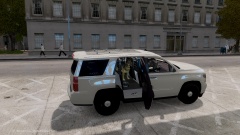
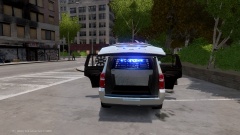
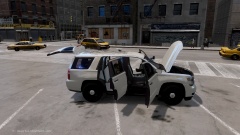
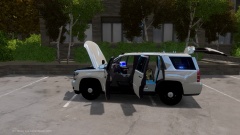
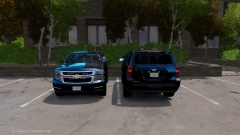
LCPD's new 2015 Chevy Tahoe PPV's
By Crizby
- 1,083 views
- View Crizby's images
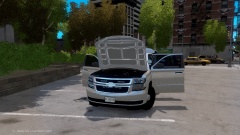
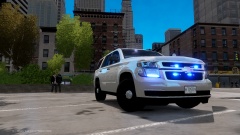
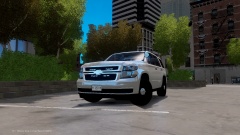
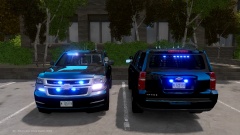
LCPD recently ordered 5 models of Chevrolet's new PPV Tahoe. The models were to be specifically designed for their K-9 unit with a slicktop light configuration. The first three Tahoe's arrived earlier this week, however this is the first time the public gets a chance to see what the new $64,000 PPV looked like.
The new Tahoe's were put in service as soon as they arrived in LC. These are just 5 of LCPD's newer fleet, don't expect to see a CVPI next time you dial 9-1-1.
This is a fictional story and I have no idea what-so-ever if the price is reasonable or ever the real price for a slicktop K-9 equiped 2015 Tahoe, so please don't criticize my numbers as they came directly from the LCPD's official statement :P
I did not make the vehicle (You can find the vehicle in the spoiler below), only changed the colors of the texture(s) who came with the car and replaced the license plate. I also changed the "Emerglighs_emis" so that I could have a "only blue set-up".
I would like to thank all the creators of this vehicle, I've never really liked the 2015 Tahoe design, however a slicktop version with the blue lights just looked so good.
http://www.gta4-mods.com/vehicles/2015-chevy-tahoe-ppv-slicktop-f28811
Thank you for reading this :)
Recommended Comments
Join the conversation
You can post now and register later. If you have an account, sign in now to post with your account.