


vynlthrash
Members
-
Joined
-
Last visited
Everything posted by vynlthrash
-
-
-
-
therehave been petitions..idk if id help though since they "support single player mods"
-
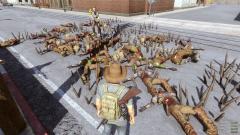 this is tru..and i understand..weird people out there... aha
 -
iwas stuck in the house..they teleported through aha could i get your steam name?? Possibly play soon?? if not its kewl
-
i was in one of the big houses in the middle nowhere and like 400 zombies surrounded the house and brutaly murdered me
-
i can agree to that...pretty much anything seth mcfarland except cleavland and also i honestly watch orange is the new black...like it to
-
BREAKING BAD lie to me family guy
-
 wow my computer went all weird....and the flashlight is that just a pose or can you walk around with it?? also incident looks good
 -
wow my computer went all weird....and the flashlight is that just a pose or can you walk around with it?? also incident looks good
-
how!
-
how!
-
i have a question..are we going to be able to use the maglights and i remeber in the preview video it showed someone being arrested in a club while they were standing...are these things going to be implemented?
-
 why didnt theyjust tase him
 -
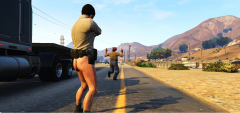 not...not exactly..theres definitely a dangle though
 -
-
-
-
id really like the cars we stop to pull over to the side of the road..aha not to the right or left of that lane..also sometimes i cant arrest people becuase their too fast or it just wont work...otherwise..incredible!
-
I have a feeling..once everyhing is opened up....lcpdfr will look alot less advanced..i think lspdfr will be all and more..They did a great job so far...and im sure they will continue
-
this is to the t, what i was thinking
-
-
-
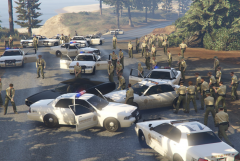 freezefreezefreezefreezefreezefreezefreezefreezefreezefreezefreezefreezefreezefreezefreezefreezefreezefreezefreezefreezefreezefreezefreezefreezefreezefreezefreezefreezefreezefreezefreezefreeze





