Leaderboard
-
New York Modz
InsidersPoints865Posts -
GTA 5 Jedi Master
MembersPoints972Posts -



Popular Content
Showing content with the highest reputation since 04/15/2026 in Image Comments
-
LSPD's new FPIU..
LAPDFR GET and one other reacted to New York Modz for a comment on a gallery image
2 points 2 points
 -
Pulled out the Caprice tonight..
New York Modz reacted to GTA 5 Jedi Master for a comment on a gallery image
1 point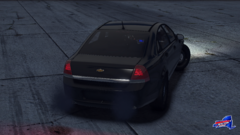 Yeah, baby! We old asses remember these relics!1 point
 -
Pulled out the Caprice tonight..
GTA 5 Jedi Master reacted to New York Modz for a comment on a gallery image
1 point
1 point -
1 point
-
Command Presence.
GTA 5 Jedi Master reacted to New York Modz for a comment on a gallery image
1 point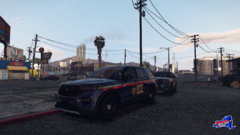 1 point
 -
We have Headlight Flashers now..
GTA 5 Jedi Master reacted to New York Modz for a comment on a gallery image
1 point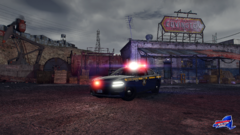 1 point
 -
Unmarked 2026 Tahoes
LAPDFR GET reacted to Cas01 for a comment on a gallery image
1 point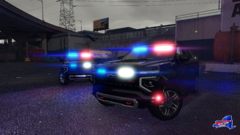 Are you making these downloadable? Would love to have this in my game.1 point
 -
1 point