


Los Santos Police Department liveries for Police Interceptor Fedsig Arjent made by F5544.
This pack only contains the LSPD textures, download the car model from here:
http://www.lcpdfr.com/files/file/8543-police-interceptor-fedsig-arjent/
Installation instructions:
1) Download and install the new car model following the instructions provided in the link, or do this:
(Use OpenIV to replace "police3.yft", "police3.ytd", "police3_hi.yft", "police3+hi.ytd" in mods/update/x64/dlcpacks/patchday4ng/dlc.rpf/x64/levels/gta5/vehicles.rpf) - Don't forget to enable Edit mode.
2) Open police3.ytd then drag and drop all texture files from "LSPD Textures" folder, press Ok when asked (Choose import options window). Save police3.ytd and close OpenIV, start the game and you should see the new car textures.
!!IMPORTANT!!: If you are running the game on NORMAL textures quality, you should use the textures from "1600px" folder. The ones from 2048px folder might look smudged. If you are running the game on High quality textures or above, use the textures from "2048px" folder.
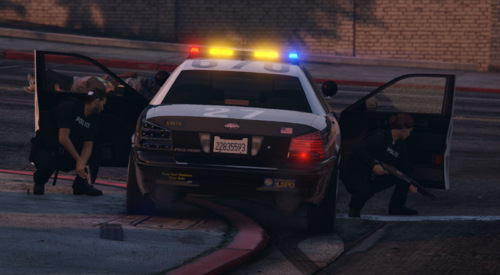
1999 CVPI LSPD textures:
Buffalo S LSPD textures:
http://www.lcpdfr.com/files/file/8683-buffalo-s-lspd-textures/
Rockstar Games - various textures



![[EUP] Met Custody SGT Softshell fleece](http://s3-screenshots.int-cdn.lcpdfrusercontent.com/resize/500/-/monthly_2026_05/metsoftshell.thumb.png.e4097f75eb2b1152517ba60a3dd3c088.png)
![[ELS][REPLACE] Škoda Kodiaq 2018 Czech Police Pack - 3 Variations](http://s3-screenshots.int-cdn.lcpdfrusercontent.com/resize/500/-/monthly_2026_05/20260502191956_1.thumb.jpg.e3466489ca866b63ffeeb7c0dc576069.jpg)


![[EUP] COLP](http://s3-screenshots.int-cdn.lcpdfrusercontent.com/resize/500/-/monthly_2026_05/COL_2.thumb.png.8f6eb8191867522992ea01416d182a80.png)
![[EUP] CBRN](http://s3-screenshots.int-cdn.lcpdfrusercontent.com/resize/500/-/monthly_2026_05/CBRN_2.thumb.png.f03f06680f58ccff02223a2fe99e473b.png)
.thumb.png.bd195e42a078bb7c7f3a1182f03e9694.png)
Recommended Comments
Create an account or sign in to comment