



.jpg.10ab13fca8056b8f76fbef13068b004c.jpg)
.jpg.21d96eae7e2b932a94d44c54cbb1e6b8.jpg)
.jpg.1cc2e5505a6d1202fda229a944962181.jpg)
.jpg.a7bc19eef9bf645ea3a47fbd1c51447c.jpg)
.jpg.fe1bdebca32bae6ae5adb85714e8e43a.jpg)
.jpg.b54ef5c50e0d9abe2a7c10f3fe52c045.jpg)
.jpg.c33dc78b7b269260f9e1a1190dc9a25b.jpg)
.jpg.2c85d7ee0a191e5883352d3336f66d11.jpg)
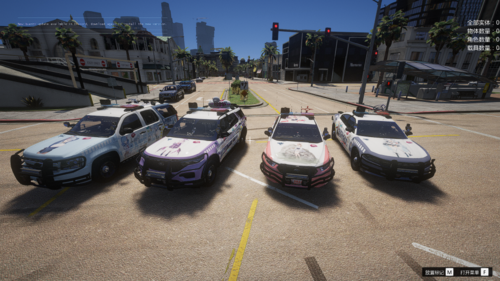
Hey guys this is a LS RCMP and SUPERVISOR skin for LtMattJeter [DEV] Templated Stanier 1.5
=======================================
HOW TO INSTALL
=======================================
TEXTURES - x64e.rpf/ levels/ gta5/ vehicles.rpf
then go to police and replace both the sign files
VEHICLE - x64e.rpf/ levels/ gta5/ vehicles.rpf
then inport all the vehicle file directly in there and your done!
=======================================
FILES
=======================================
- texture file : sign_1
sign_2
-screenshots
DO NOT REUPLOAD THE FILE TO ANOTHER SITE
CeneteredTugBoat



![[RELEASE] LASD/LSSD Livery Pack [WIP / Expanding]](http://s3-screenshots.int-cdn.lcpdfrusercontent.com/resize/500/-/monthly_2026_08/21FPIUGANGU.thumb.png.f0e6002acd0292503460afc05196e30a.png)

![[FiveM Ready] Ko's Tactical Weapon Reanimations](http://s3-screenshots.int-cdn.lcpdfrusercontent.com/resize/500/-/monthly_2026_07/thumb.png.b283ec2bda81273e772accb09e4fee78.thumb.png.5420bd422737991c0354bba03593a37c.png)






Recommended Comments
Create an account or sign in to comment