


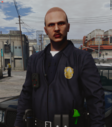


3x Chest Mic Pose Pack
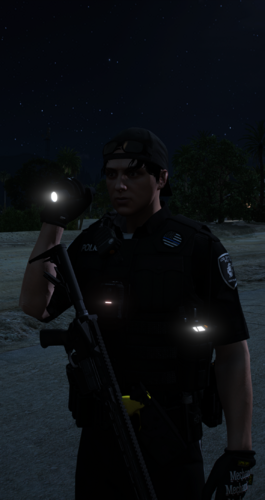
Add more variety and realism to your police roleplay with this pack of 3 Chest Mic poses.
The poses are designed for police roleplay and are suitable for LSPDFR, FiveM, screenshots, patrol scenes, and videos.
Features
3 unique Chest Mic poses
Realistic and natural positioning
Suitable for patrols, screenshots and videos
Designed for police roleplay
Easy to use
Credits
The Chest Mic models used in this pack are created by Crunchycat
Chest Mic: https://www.lcpdfr.com/downloads/gta5mods/character/51021-generic-patrol-belt-for-mp-character/
Full credit for the original Chest Mic model goes to Crunchycat.
Discord
For updates, future releases, support, or general questions, feel free to join my Discord:
Discord: https://discord.gg/ffzwaTWdm3
Thank you for checking out the pack. I hope you enjoy using these poses in your patrols and roleplay scenes.
Short Description
AI disclosure
The author has disclosed that AI tools were used in creating the following aspects of this file:
- Description

![台灣緊急車輛包 Taiwan Emergency Car Pack(2021 Toyota RAV4 LE)[ADD-ON|ELS]](http://s3-screenshots.int-cdn.lcpdfrusercontent.com/resize/500/-/monthly_2026_10/271590_20261008013919_1.thumb.png.594c5371dcab45b4bbf45e739c879d87.png)
![City of Live Oak Sheriff Minipack | Addon | FiveM/SP | [ELS-Hybrid]](http://s3-screenshots.int-cdn.lcpdfrusercontent.com/resize/500/-/monthly_2026_10/prev.thumb.jpg.2282bb6922886d97821978d0417a3b22.jpg)



![[DLS][DLC] Kansas City Kansas Police Pack](http://s3-screenshots.int-cdn.lcpdfrusercontent.com/resize/500/-/monthly_2026_10/6.thumb.png.4b6bca3b611d526404c81398ea854adf.png)


.thumb.png.8037129bc2526a9a9c435f4295948c9e.png)
Recommended Comments
Create an account or sign in to comment