





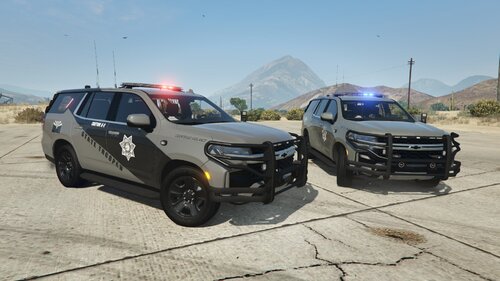
This vehicle was created and put together by itscarterfr, utilizing a high-quality base model provided by Steve6645. The vehicle features a detailed and realistic design, making it a great addition for any roleplay or law enforcement setup.
This vehicle is ELS Compatible
COMING SOON
Coroner Truck
Edited by ItsCarterFr
Short Description
This vehicle is a Coroner Tahoe, It is to add a bigger vehicle and to replace the SPEEDO that most people use.
AI disclosure
The author has disclosed that AI tools were used in creating the following aspects of this file:
- Description
Template & Vehicle By: Steve6645
Link To Vehicle: https://www.lcpdfr.com/downloads/gta5mods/vehiclemodels/49430-els-unmarked-2020-chevy-tahoe/
Link To Vehicle: https://www.lcpdfr.com/downloads/gta5mods/vehiclemodels/49430-els-unmarked-2020-chevy-tahoe/




.thumb.png.8cef6bf40847c87cdc7f2b84d14bb45d.png)
![[RELEASE] LASD/LSSD Livery Pack [WIP / Expanding]](http://s3-screenshots.int-cdn.lcpdfrusercontent.com/resize/500/-/monthly_2026_08/11CVPI-LCPDFR.thumb.png.5854e70536a1be65efd81c48874a99d2.png)

![[NON ELS / FiveM Ready] B/B 2021 FPIU Unmarked - ULC Compatible](http://s3-screenshots.int-cdn.lcpdfrusercontent.com/monthly_2026_08/fpiu1(1).thumb.png.6ba7b189c9a83d3aa873f4d24dead596.png)





Recommended Comments
Create an account or sign in to comment