Skip to content
View in the app

A better way to browse. Learn more.

LCPDFR.com

A full-screen app on your home screen with push notifications, badges and more.

To install this app on iOS and iPadOS
  1. Tap the Share icon in Safari
  2. Scroll the menu and tap Add to Home Screen.
  3. Tap Add in the top-right corner.
To install this app on Android
  1. Tap the 3-dot menu (⋮) in the top-right corner of the browser.
  2. Tap Add to Home screen or Install app.
  3. Confirm by tapping Install.

Liberty City Police Department CV Skin

(1 review)

6 Screenshots

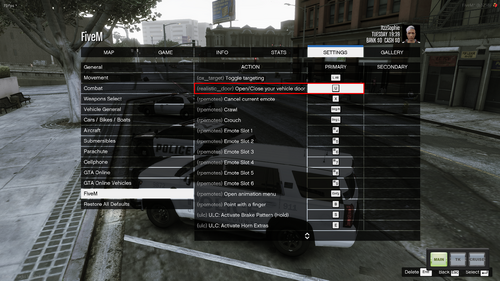
This is a nice skin that I made in my opinion. Please leave comments, they are greatly appreciated.

User Feedback

Recommended Comments

officer93

Members

why is this uploaded twice??? secondly the rear bumper looks ugly and very unrealistic but is definitely an improvement for you

FloridaSheriff

Members Author

why is this uploaded twice??? secondly the rear bumper looks ugly and very unrealistic but is definitely an improvement for you

Yeah, didn't mean to upload it twice. Can you tell me how to delete the other one? Yeah, I was debating on the rear bumper, I guess it wasn't a very good idea afterall.

drdetroit

Members

Love the concept, like the blue as well.

FloridaSheriff

Members Author

Love the concept, like the blue as well.

Darkness2456

Members

can we have the link for the car ?

FloridaSheriff

Members Author

can we have the link for the car ?

The car was custom made by my lcpdfr clan leader, sorry. But I am sure it will fit on the BxBugs models.

imadoofus

Members

Love the concept, like the blue as well. Simple and clean. The only thing; straighten out the POLICE on the side of the doors. Looks crooked to me. DrDetroit
Why do you keep putting your name after every comment? We can see your username. This is a reasonably good skin. I wouldn't take the one-star rating too hard; I think somebody's going around doing that to everything.

Create an account or sign in to comment

Account

Navigation

Search

Search

Configure browser push notifications

Chrome (Android)
  1. Tap the lock icon next to the address bar.
  2. Tap Permissions → Notifications.
  3. Adjust your preference.
Chrome (Desktop)
  1. Click the padlock icon in the address bar.
  2. Select Site settings.
  3. Find Notifications and adjust your preference.