


DLS configurations for Nathan's Contra Costa Mini-Pack. DLS configurations are provided for all vehicles included in the pack. Also included are custom traffic advisor patterns.
Please note, these configurations are not based on the IRL agency.
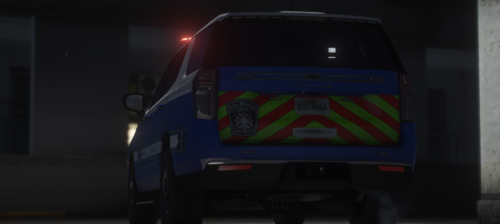
In the file, there are two options for steadyburns, CA steadyburns and Non-CA steadyburns. The CA steadyburn option will enable the top red and blue module on the lightbar when enabled. The non-CA steadyburn option will flash the front blue module on the push bumper. This is loosely based on the South Dakota Highway Patrol's traffic stop pattern were only minimal front amber light(s) will flash. See blue boxes in the screenshots for reference. Regardless of what option you pick, the red and blue modules of the lightbar will be a steadyburn pattern on stages 2 and 3. The steadyburn option will only change what happens when the "[" key is pressed using DLS.
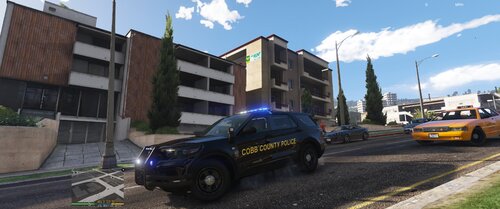
Preview of the lighting patterns
Link to the vehicle download
Short Description
Original DLS configuration templates by TheMaybeast



![Grapeseed Police Department EUP [Replace]](http://s3-screenshots.int-cdn.lcpdfrusercontent.com/resize/500/-/monthly_2026_04/mainthumbnail.thumb.png.70cc09e736714cc9fbd2cbea7f4fd4f4.png)
![台灣警車 Taiwan Police Car(2016 Ford Mondeo)[ADD-ON|ELS]](http://s3-screenshots.int-cdn.lcpdfrusercontent.com/resize/500/-/monthly_2026_04/271590_20260403180956_1.thumb.png.553e9d7daaf5ab08616b5417d74f863c.png)
.thumb.png.bee6c481e6f3d26b0515bdb772b4a06b.png)
Recommended Comments
Create an account or sign in to comment