Skip to content
View in the app

A better way to browse. Learn more.

LCPDFR.com

A full-screen app on your home screen with push notifications, badges and more.

To install this app on iOS and iPadOS
  1. Tap the Share icon in Safari
  2. Scroll the menu and tap Add to Home Screen.
  3. Tap Add in the top-right corner.
To install this app on Android
  1. Tap the 3-dot menu (⋮) in the top-right corner of the browser.
  2. Tap Add to Home screen or Install app.
  3. Confirm by tapping Install.

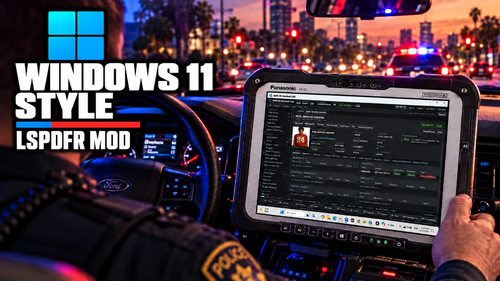
Panasonic Toughpad N/A

1 Screenshot

10/11/2013

Panasonic Toughpad

Credits go to myself (Casey24) and (Casey1989) for making this awesome Tablet PC model/mesh.

(I am releasing this as Development Support.) This mesh can be edited as long as fair credits are given!

Thank you for downloading my new Panasonic Toughpad model!

-Casey24- (LCPDFR)

&

-Casey1989- (GPM)

What's New in Version N/A

Released

  • N/A

User Feedback

Recommended Comments

Carrythxd

Members

Thank you! :D

Casey26

Members Author

Your very welcome Carrythxd! :-) i hope you like it! also please let me know if you have any issues with the model.

fancycopman

Members

Great model. I wish there was a way we could replace that clipboard that spawns when you issue a citation, with this model. Granted it wouldn't be realistic you throwing a $400+ touch-pad on the ground (lol) HOWEVER, the use of clipboards is equally unrealistic in this decade of LE... everything is print and electronic. Unless your department has the budget of a one room barbershop.

0taku

Friends of LSPDFR

is this something the use as the computer or the clipboard?

Hoffers

Members

is this something the use as the computer or the clipboard?

SnoDawg

Members

looking at the pic of the panasonic toughpad, it dont look so tough since it has a crack in the middle. lmao. jk.

Create an account or sign in to comment

Account

Navigation

Search

Search

Configure browser push notifications

Chrome (Android)
  1. Tap the lock icon next to the address bar.
  2. Tap Permissions → Notifications.
  3. Adjust your preference.
Chrome (Desktop)
  1. Click the padlock icon in the address bar.
  2. Select Site settings.
  3. Find Notifications and adjust your preference.