


Hey, Hows it going?
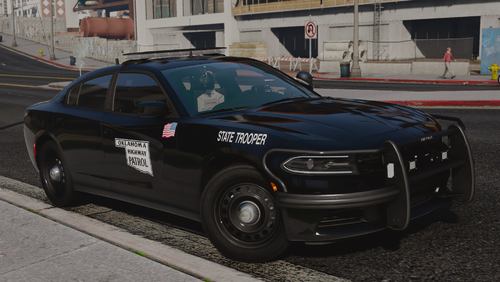
This is a Illinois State Police Texture.
The realism scale on this skin is 8/10.
I am open for criticism and other reviews.
I do agree with how this skin could be neater, but on the other hand im not a pro texture artist lol.
This was semi-hard to make so give me a break. haha
This modification Shall not be distributed any where else other than LCPDFR.
Thanks
Model Shown in pictures -
CREDITS GO TO CJ24 FOR THE MODEL SHOWN IN THE PICTURES.
Whats included :
Readme.txt
ISP Texture
Pictures
All credits go to haracios, the maker of the texture.



![Romanian Dacia Logan 2018 PACK [Ordine Publica + Rutiera] --- design vechi](http://s3-screenshots.int-cdn.lcpdfrusercontent.com/resize/500/-/monthly_2026_07/GrandTheftAutoVScreenshot2026_07.01-19_05_26_50.thumb.png.13010bf36b8151a219e1d7e991f91b6d.png)

![Politia Romana - BMW M5 [NON-ELS]-[ELS] [Add-on / Replace | FiveM-Ready]](http://s3-screenshots.int-cdn.lcpdfrusercontent.com/resize/500/-/monthly_2026_06/1.thumb.PNG.597da8bad8a1476bb85f5239259826ae.PNG)
.thumb.png.57a9b3a18a7ceee22f599419afd5b504.png)


![ND_Framework | All-in-One RP Economy & Character Framework [obfuscated]](http://s3-screenshots.int-cdn.lcpdfrusercontent.com/resize/500/-/monthly_2026_06/gCldrIO-Imgur.thumb.png.97501410a08bdc0d75929e4c93958501.png)
Recommended Comments