


.thumb.png.10f586f37b753c33890b8c24d2dd098a.png)
.png.bf989511ca362f3001816a438f593d93.png)
.png.5afc4e5afb461d4f860907b168998b9a.png)
.png.39173f48574aa68b64fe80b2cf1e150d.png)
.png.37e13fccb293e02d7e408327079b4666.png)
.png.6c8b65ea8446f257f95b67af09b9613b.png)
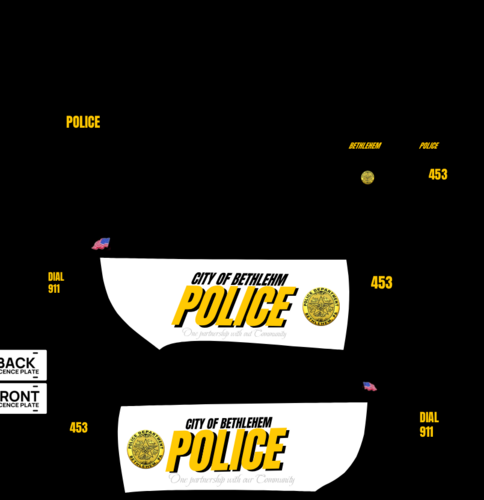
THIS IS A PAINTJOB, I DO NOT OWN THE MODEL!
IT IS STRICTLY FORBIDDEN TO UPLOAD THIS PAINTJOB ANYWHERE ELSE WITHOUT MY PERMISSION.
Join My Discord: https://discord.gg/Zs8vgXGP7s
------------------------------
CREDITS:
Model: Squir
Model Purchased: ObsidianGames, Bleep999 / State 2 Roleplay
Model Fixes: ObsidianGames
Model Lowering: ObsidianGames
Model Textures: ObsidianGames
Volvo Emergency Service Spec Alloy Wheels: ObsidianGames
Number Plates: ObsidianGames
Woodway Whelen Legacy: ObsidianGames
Woodway Whelen Legacy Textures: ObsidianGames
Woodway Whelen ION: ObsidianGames
Woodway Whelen ION: ObsidianGames
Premier Hazard Button-Blast Module: ObsidianGames
Premier Hazard Button-Blast Module Textures: ObsidianGames
Boot Divider: ObsidianGames
Cones: Rockstar Games
Brush: Rockstar Games
Skins: Greg Bull
Window Textures: ObsidianGames
Handling Line: Chris Viper
------------------------------
INSTALLATION
Download https://sv.gta5-mods.com/vehicles/2019-volvo-v60-police-demo-pack and choose "Marked Demo",
Open OpenIV --> mods --> update --> x64 --> dlcpacks --> patchday25ng --> dlc.rpf --> x64 --> levels --> gta5 --> vehicles.rpf --> drag and drop the files.
After the model is installed, simply drag the ytd I have provided into the same folder, this is what changes the paintjob.
Short Description
Model: Squir
Model Purchased: ObsidianGames, Bleep999 / State 2 Roleplay
Model Fixes: ObsidianGames
Model Lowering: ObsidianGames
Model Textures: ObsidianGames
Volvo Emergency Service Spec Alloy Wheels: ObsidianGames
Number Plates: ObsidianGames
Woodway Whelen Legacy: ObsidianGames
Woodway Whelen Legacy Textures: ObsidianGames
Woodway Whelen ION: ObsidianGames
Woodway Whelen ION: ObsidianGames
Premier Hazard Button-Blast Module: ObsidianGames
Premier Hazard Button-Blast Module Textures: ObsidianGames
Boot Divider: ObsidianGames
Cones: Rockstar Games
Brush: Rockstar Games
Skins: Greg Bull
Window Textures: ObsidianGames
Handling Line: Chris Viper


![Hanse Modding HMS RTW Vohrführfahrzeug [Lore Friendly] [SKIN]](http://s3-screenshots.int-cdn.lcpdfrusercontent.com/resize/500/-/monthly_2026_05/HMS_RTW_Vohrfhrfahrzeug_01.thumb.png.0fe0f9214e4af6997f54aa7eeb8db863.png)
![Hanse Modding WAS RTW Vohrführfahrzeug [Lore Friendly] [SKIN]](http://s3-screenshots.int-cdn.lcpdfrusercontent.com/resize/500/-/monthly_2026_05/WAS_RTW_Vohrfhrfahrzeug_01.thumb.png.632108b63dd12eb502fbf5d7cfbc5198.png)
![[ELS-Hybrid | DLC/Addon ] Low-Profile z71 Tahoes](http://s3-screenshots.int-cdn.lcpdfrusercontent.com/monthly_2026_05/25_1(1).thumb.png.7bdf0066d86afe565fac5e2684baa3e8.png)

Recommended Comments
Create an account or sign in to comment