


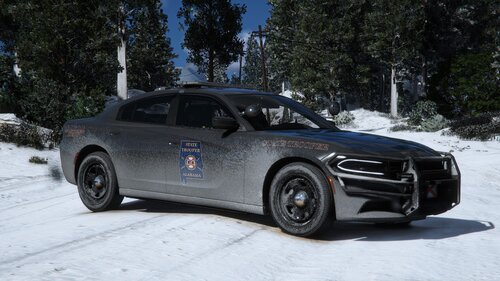
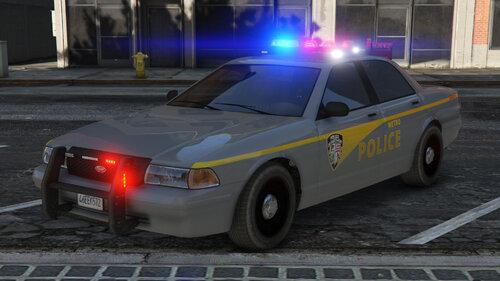
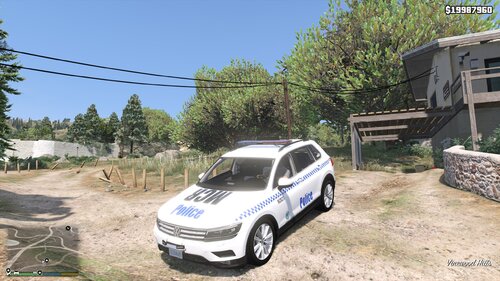
This is my second release that goes along with my SAST Mustang Livery, I hope you all enjoy it.
Credits:
Vehicle by Dibzer:
https://dibzermods.com/
Instillation Instructions:
1) Locate the Texture Dicitonary (YTD) file of the vehicle that you want this livery to be on. This is commonly found under the stream folder.
2) Open OpenIV and navigate to the folder where your YTD file is located.
2B) Don't have OpenIV, go here: https://openiv.com/
3) Turn edit mode on.
4) Open the YTD file and in the search bar type sign to locate the livery you want to replace.
5) Press the replace button and locate the PNG file that was sent to you with this package.
6) Select the PNG.
7) In OpenIV, press save.
😎 Transfer the YTD file onto your server in replace of the one provided with the vehicle.
9) Restart your server or restart the resource.
10) Check to make sure the livery has been placed on the vehicle.
This skin has been initially created for use in my community, and I have decided to release it. If you wish to join our roleplay server, please go to http://scrponline.live.
Join my development discord at: https://discord.gg/RhCxAP3HmB
Edited by M3Owner2006
Description Update





Recommended Comments
Create an account or sign in to comment