


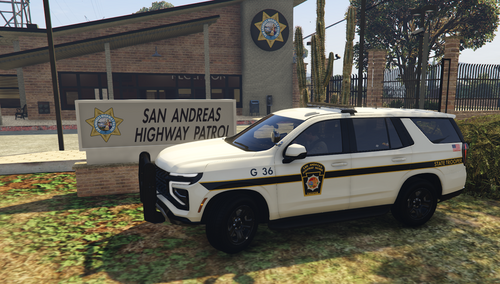
This is another creation I have done with learning how to make a traffic advisor custom through ELS I hoe you all will enjoy. It covers police(CVPI) police2(unmarked) and Police3(marked charger). If I forgot you in the credits leave a comment not my intention I work in corrections so long hours cloud my memory....sorry. I made a big oops so I redone the skins completely and hope you all enjoy.
- 2011 Forza CVPI Base Extracted by DMN
- Optimized, Converted, Textured and stuff by Thehurk
- Realisim Edits and more optimization by Lundy
- Major support with screenshots, feedback, IRL pictures, etc by Steinberg, Lundy, Problematic, and Taylor Swift
- Steelies and tires by Carper
- Hubcaps and tires by Carper
- Base model extracted by DMN from Forza Horizon 2
- Converted and textures by Thehurk
- Converted to PPV By Thehurk
- AWD Rims scratch modeled and converted By RoegonTV
- AWD Logo by IronicRainbow
"NSA" fictional lightbar by EVI.
modified into a Fedsig arjent by Five0
new modules, lamps and misc parts scratch modeled by Five0
converted to gta 5 by Five0
Model Scracted made by 0taku
Model Mapped by 0taku
Arjent made by F5544 was use as a refrence when making this Arjent
From CYNAX on gamemodels.ru
Converted and edtied by Black Jesus
All lights modeled, converted, and textured by Bueno
- Decatur Genesis I scratch modeled, textured, and converted to GTA V by HDgamerzPC
- Decatur Genesis II Select scratch modeled, textured, and converted to GTA V by HDgamerzPC
- Decatur Dash Mounted Radar scratch modeled, textured, and converted to GTA V by HDgamerzPC
and anyone else i have frogot!
- Optimized, Converted, Textured and stuff by Thehurk
- Realisim Edits and more optimization by Lundy
- Major support with screenshots, feedback, IRL pictures, etc by Steinberg, Lundy, Problematic, and Taylor Swift
- Steelies and tires by Carper
- Hubcaps and tires by Carper
- Base model extracted by DMN from Forza Horizon 2
- Converted and textures by Thehurk
- Converted to PPV By Thehurk
- AWD Rims scratch modeled and converted By RoegonTV
- AWD Logo by IronicRainbow
"NSA" fictional lightbar by EVI.
modified into a Fedsig arjent by Five0
new modules, lamps and misc parts scratch modeled by Five0
converted to gta 5 by Five0
Model Scracted made by 0taku
Model Mapped by 0taku
Arjent made by F5544 was use as a refrence when making this Arjent
From CYNAX on gamemodels.ru
Converted and edtied by Black Jesus
All lights modeled, converted, and textured by Bueno
- Decatur Genesis I scratch modeled, textured, and converted to GTA V by HDgamerzPC
- Decatur Genesis II Select scratch modeled, textured, and converted to GTA V by HDgamerzPC
- Decatur Dash Mounted Radar scratch modeled, textured, and converted to GTA V by HDgamerzPC
and anyone else i have frogot!






![🇹🇼 🌍 [LSPDFR AI] NPCI Translation Pack](http://s3-screenshots.int-cdn.lcpdfrusercontent.com/monthly_2026_08/Mod.thumb.png.008e8511c9d76e33ab7e973fd76012b9.png)


![(Addon) [DLS/ULC/ELS] FiveM/SinglePlayer CalFire 2019 PPV](http://s3-screenshots.int-cdn.lcpdfrusercontent.com/resize/500/-/monthly_2026_08/Screenshot2026-08-18232335.thumb.png.60dc0be6757e40d55e5576879da4885f.png)



Recommended Comments
Create an account or sign in to comment