Skip to content
View in the app

A better way to browse. Learn more.

LCPDFR.com

A full-screen app on your home screen with push notifications, badges and more.

To install this app on iOS and iPadOS
  1. Tap the Share icon in Safari
  2. Scroll the menu and tap Add to Home Screen.
  3. Tap Add in the top-right corner.
To install this app on Android
  1. Tap the 3-dot menu (⋮) in the top-right corner of the browser.
  2. Tap Add to Home screen or Install app.
  3. Confirm by tapping Install.

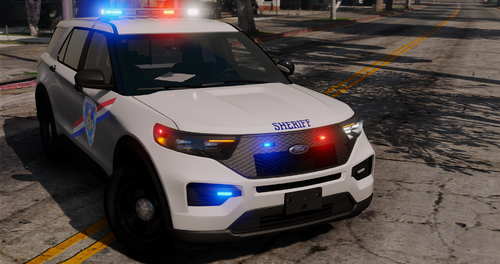
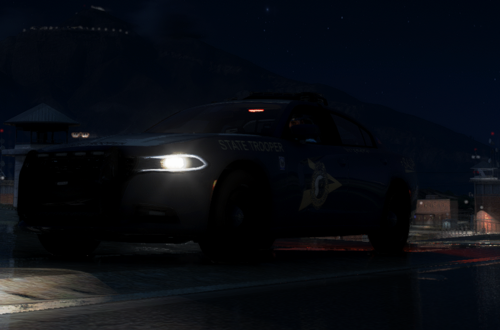
[ELS] 2016 LSPD FPIS 1.0.0

(0 reviews)

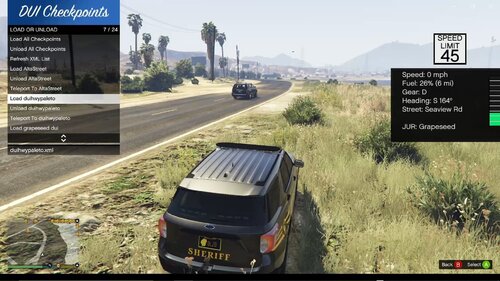
4 Screenshots


Huge thanks to ERIC for the skin!

Credit to Deputy Chief Eric, Lead Texture Artist from the GTA Mobile Alabama Clan for the livery

Link to his account: https://www.lcpdfr.com/profile/220805-providencelaw/

Please give him a follow to show some support!


   exp.thumb.jpg.38f2aaef5bab1004679d4fcad336b9eb.jpg

User Feedback

Recommended Comments

SgtMattyMoo

Members

just going to jump in and say https://www.lcpdfr.com/files/file/21480-els-2010-k9-charger/ it goes well with this. im guessing thats what your intention was :D

RangerZ

Members Author

I copied the texture from the k9 charger and scaled it to the fpis. Then i just colored white over the "Caution K9".

10 DAVID 01

Members

Just now, RangerZ said:

I copied the texture from the k9 charger and scaled it to the fpis. Then i just colored white over the "Caution K9".


 i figured that. looks good to me. i would probably change the unit number or remove it if there is only one unit number, but thats personal preference I don't like to see four or five cars with the same unit number lol...

RangerZ

Members Author

2 hours ago, SGT. DOOMSLAYER said:


 i figured that. looks good to me. i would probably change the unit number or remove it if there is only one unit number, but thats personal preference I don't like to see four or five cars with the same unit number lol...

good point

Create an account or sign in to comment

Account

Navigation

Search

Search

Configure browser push notifications

Chrome (Android)
  1. Tap the lock icon next to the address bar.
  2. Tap Permissions → Notifications.
  3. Adjust your preference.
Chrome (Desktop)
  1. Click the padlock icon in the address bar.
  2. Select Site settings.
  3. Find Notifications and adjust your preference.