




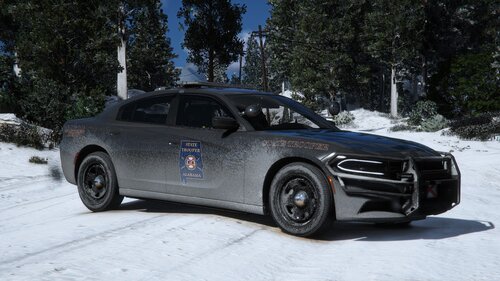
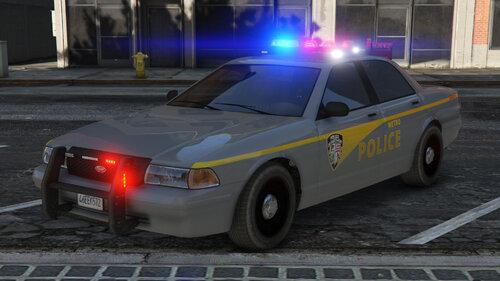
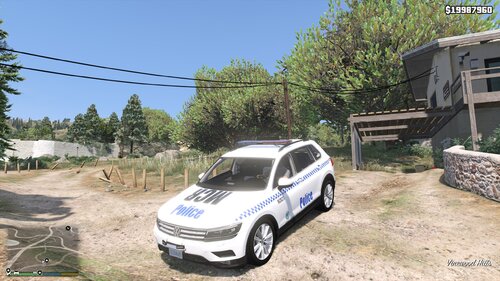
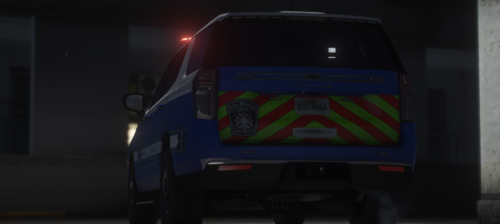
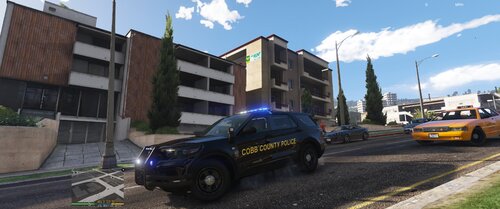
Blaine County Sheriff Pack based in part off of Fayette County, WV Sheriffs Dept.. I wont be updating or adding anymore however the skins will work on any vehicle with same base model (you will just have to try if using other pack then those I used to make). If there is a specific model that you would lie to use these on but they wont fit leave a review and a request otherwise sorry, I've spent time making skins for complete packs on request without so much as a thank you let alone a review or like so I wont be doing that anymore unless you review and request that way.
The models I used in screenshots is South Carolina Highway Patrol Pack by: SCLEDNoah
https://www.lcpdfr.com/files/file/16161-els-south-carolina-highway-patrol-pack/
Do not reupload these to any other site or claim as your own, if you would like to use them in clans or FiveM ask
****Like these textures but they don't fit the model your wanting to use, Rate and leave a review and put your request in the comments****
What's New in Version 1.1.1
Released
v1.0.1 - Added Textures for RogueThunder's Off Road Dodge Ram
v1.1.1 - Added z28 Camaro by Walters
Models by: SCLEDNoah




Recommended Comments
Create an account or sign in to comment