Skip to content
View in the app

A better way to browse. Learn more.

LCPDFR.com

A full-screen app on your home screen with push notifications, badges and more.

To install this app on iOS and iPadOS
  1. Tap the Share icon in Safari
  2. Scroll the menu and tap Add to Home Screen.
  3. Tap Add in the top-right corner.
To install this app on Android
  1. Tap the 3-dot menu (⋮) in the top-right corner of the browser.
  2. Tap Add to Home screen or Install app.
  3. Confirm by tapping Install.

Unmarked Vapid Stanier Police Interceptor. 1.0.0

(0 reviews)

7 Screenshots

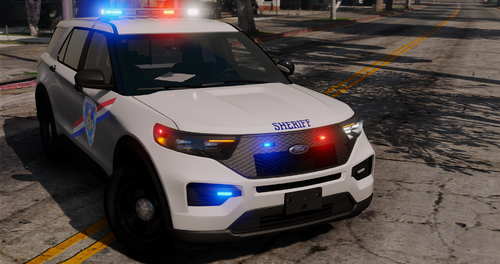
this is a stock police 4  model what is in gta5 and i have remodelled it with a dash light, a light bar in the grill, a red and a blue light in the front bumper fog lights, rear passenger door lights, a red and a blue flashing reverse light, and also a second rear view mirror, and i have moved the rear lights down onto the bottom of the rear windscreen, all what i have done are in the images.


Thank you for downloading and i hope you enjoy it.


If you would like to donate you can, it would help me make more mods like this and better ones.

User Feedback

Recommended Comments

Legion672

Members

It would be nice to have some in game screenshots with the lights so we can get a general idea of how it would look in game. Even if the game is not the best quality, it's better to have them so people can get an idea of what they can expect. Worst case scenario it exceeds expectations.

GTAModding

Members Author

Legion672 i cant get in game images as my PC don't run gta5 so you would have to download it and then if it don't work then you can just take it out.

On 10/9/2018 at 12:04 PM, GTAModding said:

Legion672 i cant get in game images as my PC don't run gta5 so you would have to download it and then if it don't work then you can just take it out.

Then why mod if you can't use the cars that you make?

Create an account or sign in to comment

Latest Mods

Account

Navigation

Search

Search

Configure browser push notifications

Chrome (Android)
  1. Tap the lock icon next to the address bar.
  2. Tap Permissions → Notifications.
  3. Adjust your preference.
Chrome (Desktop)
  1. Click the padlock icon in the address bar.
  2. Select Site settings.
  3. Find Notifications and adjust your preference.