


Before I get started I would like to shout out Walters for making the Models. He did an awesome Job Check out his page: http://www.lcpdfr.com/profile/266827-walters/#elUserLink_menu
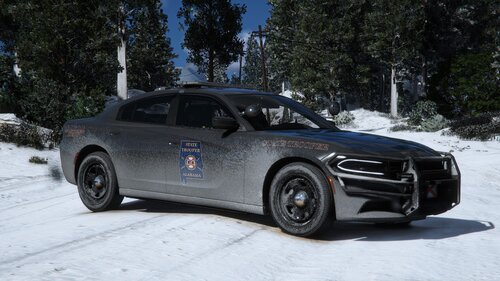
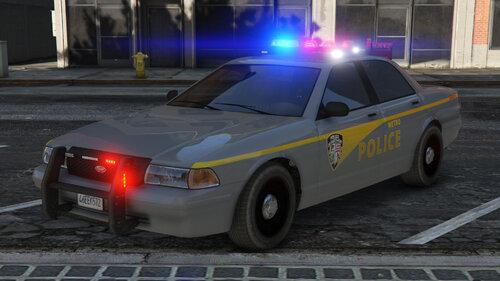
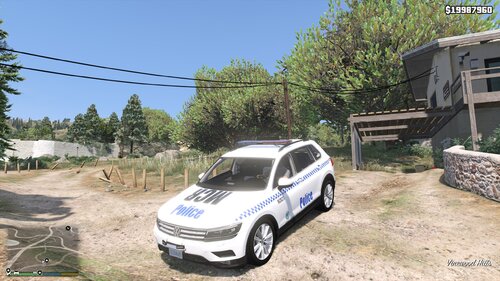
THIS IS MY FIRST TEXTURE PACK AND UPLOAD TO LCPDFR. I hope you enjoy :)
YOU MUST DOWNLOAD THIS for the models
If you do not know how to install textures they have plenty of tutorials on YouTube. It is very easy.
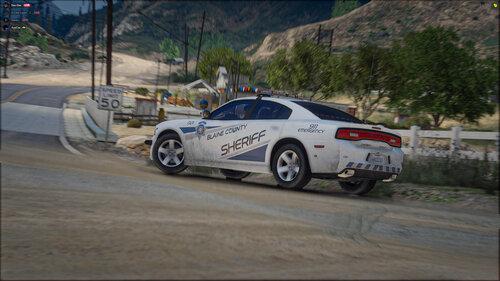
Some models will look tinted only when you spawn them in with the trainer. They will look normal once you are using LSPDFR. They will also look normal when other officers use them no-matter if you are running LSPDFR or not.
Please read the Readme file in download
Lastly, like I said before, this is my first texture pack and upload on this site. I have been a member since GTA IV and decided to contribute something. ENJOY, LEAVE FEEDBACK AND SUGGESTIONS BELOW!!! Thanks- Trey
Walter made all the Models
![台灣警車 Taiwan Police Car(2016 Ford Mondeo)[ADD-ON|ELS]](http://s3-screenshots.int-cdn.lcpdfrusercontent.com/resize/500/-/monthly_2026_04/271590_20260403180956_1.thumb.png.553e9d7daaf5ab08616b5417d74f863c.png)



Recommended Comments
Create an account or sign in to comment