


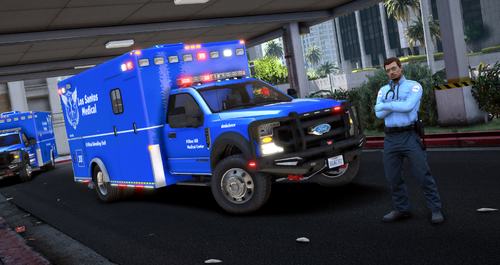
I do not have ELS installed, so the screens are a bit blah
I will be updating this, as i feel it need more work.
First you'll need this http://www.lcpdfr.com/files/file/17357-mobile-command-centermobile-command-bus/
When you have that install pbus using OpenIV into : Grand Theft Auto V\mods\update\x64\dlcpacks\patchday3ng\dlc.rpf\x64\levels\gta5\vehicles.rpf\
Then drag/copy my .ytd file into the same location.
Also from the downloaded file you'll need the ELS VCF for ALL BLUE LIGHTS, Install instructions are in that download
I DO NOT TAKE CREDIT FOR THE MODEL, I HAVE ONLY MADE THE SKIN AND ADAPTED THE LIGHTING FOR UK VARIANTS
What's New in Version 1.0.1
Released
:Re-worked all the lettering
:Removed some of the striping on the rear
-Credits-
Bus Model created by Rockstar Games.
UV Map Livery for template by Thero.
Windows UV Map for template by Thero.
Flares and headlights created by Rockstar Games, Morphed and textured into a Budweiser beer bottle by Thero.
TV Created by Rockstar games and UV mapped by Thero.
Neon Lights and speakers are objects of Rockstar Games. Morphed, UV Map and Textured by Thero.
CREDITS:
Design by Code 3 PSE
Completely scratch modelled and textured by Macgregor
Lighthead textures scratch rendered by Macgregor
**CREDITS
Tomar 200S - NickieB
Converted to GTA 5 by Thero
Federal Signal Quadraflare Pack
by Tomcat8492
Wheelin Ions
-Modeled in 3ds Max by Coopercm
-Converted and mapped by Coopercm
-Candice
Bus Model created by Rockstar Games.
UV Map Livery for template by Thero.
Windows UV Map for template by Thero.
Flares and headlights created by Rockstar Games, Morphed and textured into a Budweiser beer bottle by Thero.
TV Created by Rockstar games and UV mapped by Thero.
Neon Lights and speakers are objects of Rockstar Games. Morphed, UV Map and Textured by Thero.
CREDITS:
Design by Code 3 PSE
Completely scratch modelled and textured by Macgregor
Lighthead textures scratch rendered by Macgregor
**CREDITS
Tomar 200S - NickieB
Converted to GTA 5 by Thero
Federal Signal Quadraflare Pack
by Tomcat8492
Wheelin Ions
-Modeled in 3ds Max by Coopercm
-Converted and mapped by Coopercm
-Candice
- Candice and Hullian111
-
 2
2

![Hanse Modding HMS RTW Vohrführfahrzeug [Lore Friendly] [SKIN]](http://s3-screenshots.int-cdn.lcpdfrusercontent.com/resize/500/-/monthly_2026_05/HMS_RTW_Vohrfhrfahrzeug_01.thumb.png.0fe0f9214e4af6997f54aa7eeb8db863.png)
![Hanse Modding WAS RTW Vohrführfahrzeug [Lore Friendly] [SKIN]](http://s3-screenshots.int-cdn.lcpdfrusercontent.com/resize/500/-/monthly_2026_05/WAS_RTW_Vohrfhrfahrzeug_01.thumb.png.632108b63dd12eb502fbf5d7cfbc5198.png)
![[ELS-Hybrid | DLC/Addon ] Low-Profile z71 Tahoes](http://s3-screenshots.int-cdn.lcpdfrusercontent.com/monthly_2026_05/25_1(1).thumb.png.7bdf0066d86afe565fac5e2684baa3e8.png)

Recommended Comments
Create an account or sign in to comment