


Los Angeles Airport Police (LAXPD) - Texture Pack
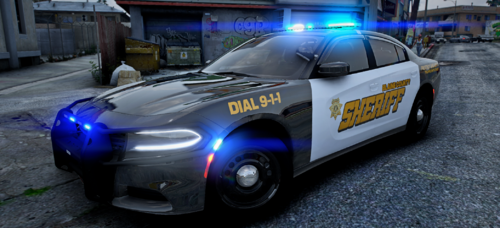
Included vehicle skins:
- LAXPD Chevrolet Caprice
- LAXPD Chevrolet Tahoe
- LAXPD CVPI
Vehicle downloads:
Caprice:
https://www.gta5-mods.com/vehicles/los-santos-police-chevrolet-caprice-ppv/download
CVPI:
Tahoe:
Hope you like it.
Thank you @RINGISKONG for testing the skins!
++++++++++REQUIREMENTS++++++++++
- OpenIV (Download here: http://openiv.com/ and install it)
- Vehicles from the list above
++++++++++INSTALLATION++++++++++
- Open OpenIV and click on "Edit mode"
- Download the vehicles needed for the templates
- Navigate to file you want to replace
- Double-click on .ytd file of vehicle you want to replace (for example "police.ytd")
- Drag & Drop the template into the list on the left side (ensure the names of template and the template you want to replace are the same)
- Click on "Save" on the right side on the bottom
- Finish


![[ELS] TOS Friendly Gravel Scouting Pannenhilfsfahrzeug](http://s3-screenshots.int-cdn.lcpdfrusercontent.com/resize/500/-/monthly_2026_05/image(1).thumb.png.11b6d1dd804231463c410697238c6672.png)

![[ELS] TOS Friendly Gravel Scouting HVO](http://s3-screenshots.int-cdn.lcpdfrusercontent.com/resize/500/-/monthly_2026_05/01.thumb.png.29cd5d50d6b87d8d94e1a371570d583b.png)






Recommended Comments
Create an account or sign in to comment