


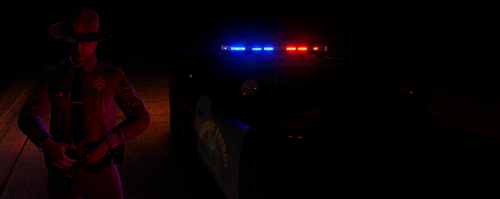
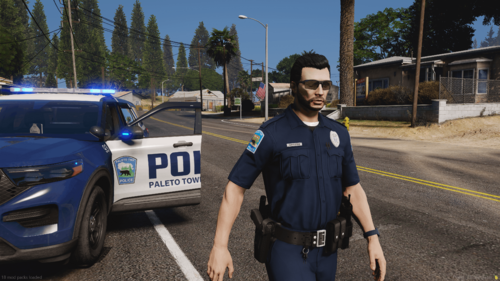
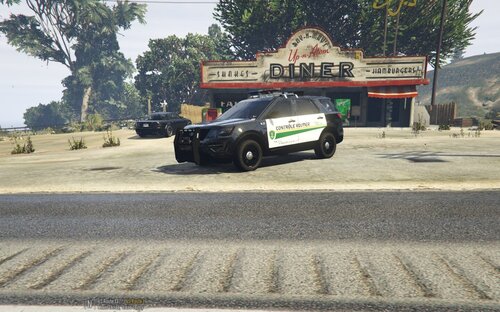
Seven skins, five of which are black and white while the remaining two are a fictional all white just for fun, one being a supervisor.
Each unit has a unique assigned number.
License plates do not appear*
Feel free to edit and upload at your own discretion.
If you have any suggestions please let me know, these were created just for amusement to satisfy the lack of a state police presence.
If you'd like to send me some superb screenshots, I'd love that and add them to the file. (Just include which model you used)
- Install your desired model
- Locate the file's .ytd
- Open the .ytd texture dictionary file
- Import all the files included in the rar (Not the readme)
- IF any problems continue, PM for one on one help
- Let the authour know how you feel about their model which may be acquired here:
Chewtoy



![[ELS-Hybrid | DLC/Addon ] Low-Profile z71 Tahoes](http://s3-screenshots.int-cdn.lcpdfrusercontent.com/resize/500/-/monthly_2026_05/25_1(1).thumb.png.7bdf0066d86afe565fac5e2684baa3e8.png)
![Blaine County Sheriff's Office Package [Replace/Addon]](http://s3-screenshots.int-cdn.lcpdfrusercontent.com/resize/500/-/monthly_2026_05/Screenshot2026-05-02002834.thumb.png.c4675a1f9cbe0dc058244f158c7ee8a1.png)

Recommended Comments
Create an account or sign in to comment