Skip to content
View in the app

A better way to browse. Learn more.

LCPDFR.com

A full-screen app on your home screen with push notifications, badges and more.

To install this app on iOS and iPadOS
  1. Tap the Share icon in Safari
  2. Scroll the menu and tap Add to Home Screen.
  3. Tap Add in the top-right corner.
To install this app on Android
  1. Tap the 3-dot menu (⋮) in the top-right corner of the browser.
  2. Tap Add to Home screen or Install app.
  3. Confirm by tapping Install.

Use PoliceOld2 as Normal Police Slot 2.0.0

(5 reviews)

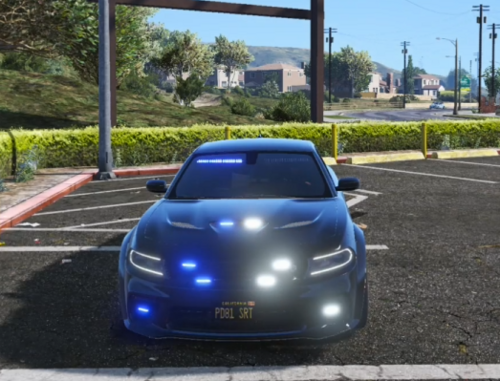
1 Screenshot

This will allow you to use any cvpi and possibly other cars in the policeold2 slot in case you are running out of room!

You can report any errors but I probably wont do anything about it due to the fact I have no idea how to work more in-depth with handling lines.

If you need to know what car was used in the screenshot here it is: 


What's New in Version 2.0.0

Released

Added support for multiple liveries

User Feedback

Recommended Comments

WZNGT

Members

Would be useful for me if I find this earlier, but I was successful to edit my policeold2 with 98 CVPI and it works fine tonight, actually it is even easier than edit the vehicles.meta :)

billiarboy

Members

I tried this and the car still sounds like a truck and the lights do not work, what am I doing wrong?

billiarboy

Members

On ‎12‎/‎8‎/‎2016 at 9:49 AM, billiarboy said:

I tried this and the car still sounds like a truck and the lights do not work, what am I doing wrong?

I got it too work,how would one use this for policeold1?

TrooperA1868

Members

(edited)

thank you so much but can you help me with the sound cuz mine sounds like a truck

Edited by iGoDPrince

DanielO135

Members

Hey i love the mod do you think you can do the same with the policeold? nice mod mate


Create an account or sign in to comment

Account

Navigation

Search

Search

Configure browser push notifications

Chrome (Android)
  1. Tap the lock icon next to the address bar.
  2. Tap Permissions → Notifications.
  3. Adjust your preference.
Chrome (Desktop)
  1. Click the padlock icon in the address bar.
  2. Select Site settings.
  3. Find Notifications and adjust your preference.