Skip to content
View in the app

A better way to browse. Learn more.

LCPDFR.com

A full-screen app on your home screen with push notifications, badges and more.

To install this app on iOS and iPadOS
  1. Tap the Share icon in Safari
  2. Scroll the menu and tap Add to Home Screen.
  3. Tap Add in the top-right corner.
To install this app on Android
  1. Tap the 3-dot menu (⋮) in the top-right corner of the browser.
  2. Tap Add to Home screen or Install app.
  3. Confirm by tapping Install.

police checkpoint .

(6 reviews)

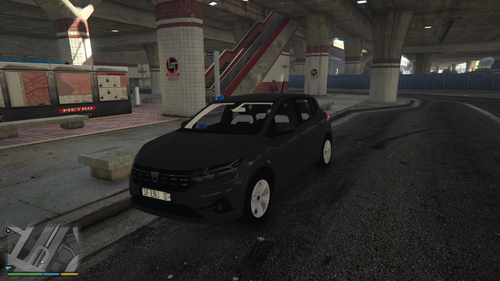
2 Screenshots


--------------------------------------

 1. about my self :

 2. That is my first map

 3. You must have map editor

 ------------------------------------------------------------

 4. installation :

 5.  Place '' police checkpoint 1.xml '' into GTA V Directory .     

 6.  Open Map Editor and load " police checkpoint 1.xml " .      

 7. Download - map editor    -   https://www.gta5-mods.com/scripts/map-editor   

 ------------------------------------------------------------------------------------------------------

-Speed Camera in highway

 
-Police CheckPoint
 
-Add some Lamp


What's New in Version .

Released

-Add some Lamp

User Feedback

Recommended Comments

nicechr

Members Author

photos coming soon

BlueLine Vibes

Members

yes you will need some photos and perhaps what its about

straitdill

Members

No pics no clicks.

nicechr

Members Author

Ok here is my first map and I'm new to the LSPDFR so I'm working to be better and there will be pictures soon.

RyWilson

Members

4 hours ago, nicechr said:

Ok here is my first map and I'm new to the LSPDFR so I'm working to be better and there will be pictures soon.

welcome to the forum :) glad to see you making things for our game. as this is a work in progress for you, i'm sure it will get better and better! good luck :teehee:

nicechr

Members Author

thank you

telinha

Members

On 10/07/2016 at 11:46 AM, nicechr said:

photos coming soon

I can not wait! Am I crazy to test

Create an account or sign in to comment

Account

Navigation

Search

Search

Configure browser push notifications

Chrome (Android)
  1. Tap the lock icon next to the address bar.
  2. Tap Permissions → Notifications.
  3. Adjust your preference.
Chrome (Desktop)
  1. Click the padlock icon in the address bar.
  2. Select Site settings.
  3. Find Notifications and adjust your preference.