Skip to content
View in the app

A better way to browse. Learn more.

LCPDFR.com

A full-screen app on your home screen with push notifications, badges and more.

To install this app on iOS and iPadOS
  1. Tap the Share icon in Safari
  2. Scroll the menu and tap Add to Home Screen.
  3. Tap Add in the top-right corner.
To install this app on Android
  1. Tap the 3-dot menu (⋮) in the top-right corner of the browser.
  2. Tap Add to Home screen or Install app.
  3. Confirm by tapping Install.

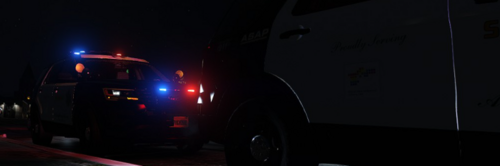
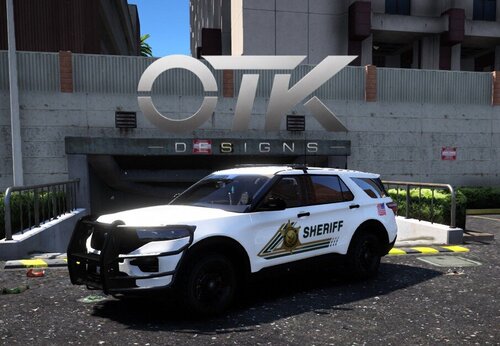
Georga State Police Pack (requested) 1.0.0

(1 review)

6 Screenshots

User Feedback

Recommended Comments

xMoD

Members

Well currently only MCCD uses them for GDPS but I havent seen any for normal GSP

dindan306

Members

Which cvpi is that?

Robins1999

Members

2 hours ago, dindan306 said:

Which cvpi is that?

The cvpi is 


But it works with most cvpi


RepoStudios

Members

(edited)

.

Edited by RepoStudios

RoguePlus

Members Author

(edited)

7 hours ago, RepoStudios said:

Haven't seen any on the west central  half of Georgia from Atlanta to Post #4 have yet to see a explorer. But you can tell these were just thrown together. You can tell the author isn't from Georgia. No pride.

Someone asked me to make these skins and even the Explorer, Even he know's they dont use them. If you dont like them then dont download.

Edited by rcmp

SirTacoGaming

Members

7 hours ago, RepoStudios said:

Haven't seen any on the west central  half of Georgia from Atlanta to Post #4 have yet to see a explorer. But you can tell these were just thrown together. You can tell the author isn't from Georgia. No pride.

Well sir, most obviously he isn't from Georgia. If you couldn't tell by his name and picture, he is Canadian. The design for the cars are quite basic and simple to recreate. If you don't like his work, please do not download them. On another note, nice design, I would like to see more places actually use the Explorer.

Create an account or sign in to comment

Account

Navigation

Search

Search

Configure browser push notifications

Chrome (Android)
  1. Tap the lock icon next to the address bar.
  2. Tap Permissions → Notifications.
  3. Adjust your preference.
Chrome (Desktop)
  1. Click the padlock icon in the address bar.
  2. Select Site settings.
  3. Find Notifications and adjust your preference.