


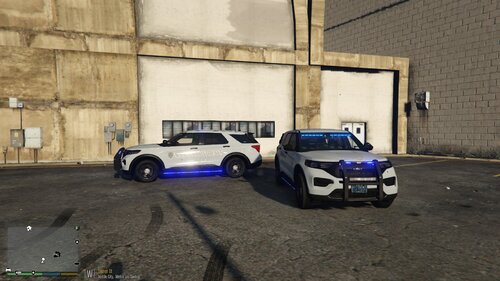
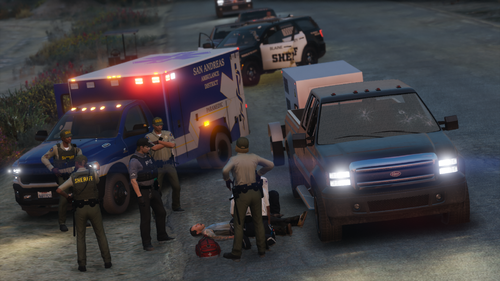
This Mason County Sheriff Texture Is Based in Washington
Do NOT re-upload ANY of the content included in this download.
Do NOT claim ANY of the content included in this download as yours.
Do NOT attempt to re-sell, and or redistribute ANY of the content included in this download in any way, shape, or form.
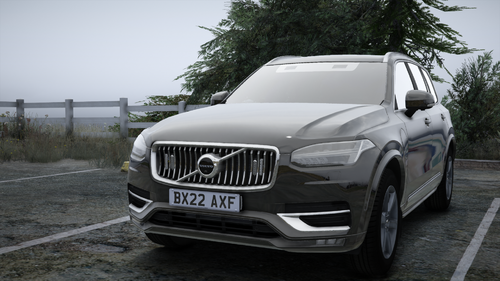
Sorry about me for forgetting to change the badge from Mason County to Blaine County, when I was taking
the screenshots for the Blaine County one I was like crap I forgot to change the badge to Blaine County so after I got
done I went back and changed the badge to Blaine County as you can see if you click on the Blaine County
texture. (SORRY)
Edited by riding with antonio
What's New in Version 10/14/2022 11:28 PM
Released
I have added Fonts to the Sheriff and Mason County Letters as you can see in the last pictures but only for Mason County not Blaine County yet
.thumb.png.601e0948b0e617ff71bf98da00273c2a.png)
![[LSPDFR] sCallout - New Callouts, Advanced AI & Interaction System (EN/PL)](http://s3-screenshots.int-cdn.lcpdfrusercontent.com/monthly_2026_05/4e930439-3362-4980-8acd-cddd1c01602e.thumb.jpg.87fbd6bbbd416ed3ef00517e26d9ea74.jpg)
.thumb.png.5cf5796ed5e052d230fd2a5e47833118.png)

![[ELS][REPLACE] Skoda Octavia III Czech Police](http://s3-screenshots.int-cdn.lcpdfrusercontent.com/resize/500/-/monthly_2026_05/20260527215316_1.thumb.jpg.5cdecd33e053a1fc953a6bbecf43b0d2.jpg)
![[ELS][REPLACE] Unmarked Skoda Superb Czech Police](http://s3-screenshots.int-cdn.lcpdfrusercontent.com/resize/500/-/monthly_2026_05/20260517173300_1.thumb.jpg.411d3605d01e45626528c58ae5fe1cfe.jpg)
![[ELS][REPLACE] BMW 540i xDrive Czech Police](http://s3-screenshots.int-cdn.lcpdfrusercontent.com/resize/500/-/monthly_2026_05/20260527001705_1.thumb.jpg.6f7cd2ece2950c9e461ee6a5cb1cf09a.jpg)
.thumb.png.a9476618c55de3bba6cff9a13b841e7d.png)
![[EUP] South Yankton State Trooper Mini-Pack](http://s3-screenshots.int-cdn.lcpdfrusercontent.com/resize/500/-/monthly_2026_05/7044B517-BEE3-44A8-8C59-D133D3B6E6F4.thumb.png.83d67cd42d6206333dda14a45f448e0b.png)
![[ELS-Hybrid | Addon | Non-Lore] Oroville Police 2025 F150PR](http://s3-screenshots.int-cdn.lcpdfrusercontent.com/resize/500/-/monthly_2026_05/2.thumb.png.81ee5a15c7d00a898911a3b52e60ca18.png)
Recommended Comments
Create an account or sign in to comment