





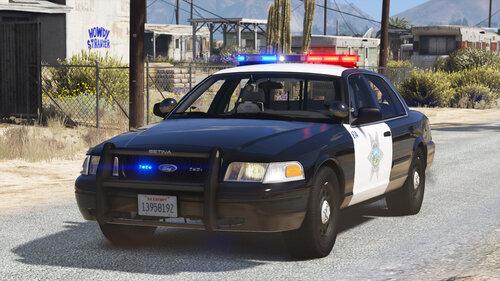
Ever felt like the LSPD drives a little bit too rough, that their cars look ugly and banged up when backup arrives on scene or when in a pursuit?
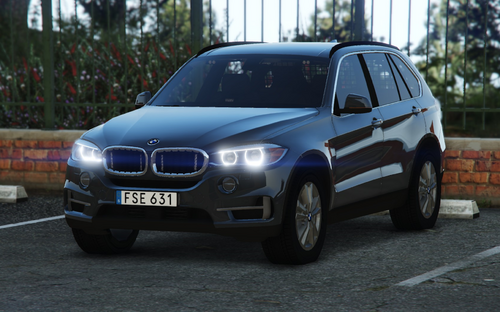
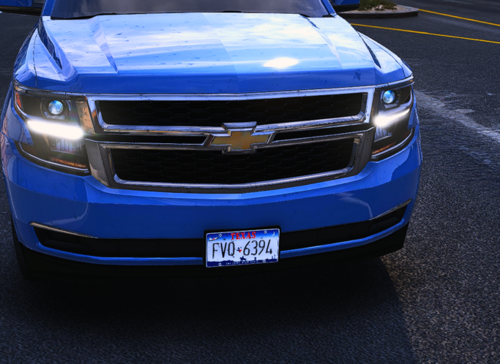
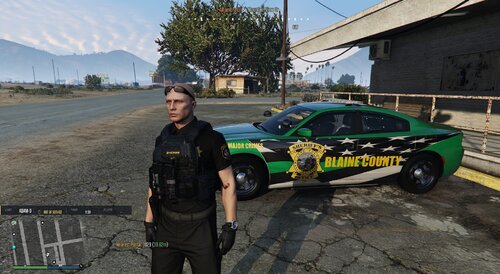
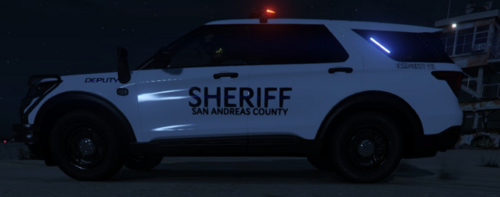
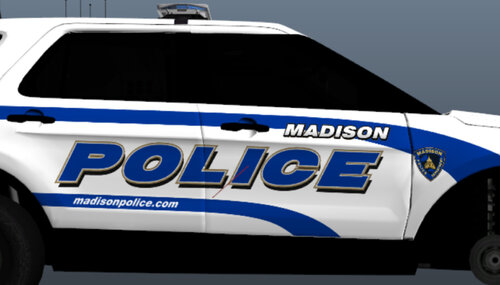
Then this little RPH plugin is for you. Does what it says on the tin. It makes any car that is marked as a police vehicle invincible and unable to take visible damage (except for the glass on Windows and Lightbars, visible bulletholes and scratchmarks.).
Its intended usage is together with LSPDFR (but it does not require LSPDFR) to make sure that all police vehicles look up to shape.
Review the readme for a more in-depth "how-to", but just for basics;
- This is not a API plugin for LSPDFR. It's a RPH plugin
- It is installed the same way any other RPH plugin is installed: By putting it in the \plugins folder.
This is my first ever C# creation for GTA V, and as such, it's really basic. Still, I could not have done this without the help of LukeD and Sam. Thanks!
Source code is included to encourage development, and help others with their development.
LukeD for making sure I did everything right :D
Sam for making my code a bit shorter and effective


.thumb.png.aba303ef3347895c10dd77447e0939d1.png)
.thumb.png.48f7634114fcf3c9dcd9640b767efa15.png)
.thumb.png.36a20ba37d2f72ab290a620325b92fcf.png)
.thumb.png.5919dc9dd354252d0c596d9817ce3469.png)

Recommended Comments
Create an account or sign in to comment