Skip to content
View in the app

A better way to browse. Learn more.

LCPDFR.com

A full-screen app on your home screen with push notifications, badges and more.

To install this app on iOS and iPadOS
  1. Tap the Share icon in Safari
  2. Scroll the menu and tap Add to Home Screen.
  3. Tap Add in the top-right corner.
To install this app on Android
  1. Tap the 3-dot menu (⋮) in the top-right corner of the browser.
  2. Tap Add to Home screen or Install app.
  3. Confirm by tapping Install.

PolizeiComputer (Computer+ Add-On) - Übersetzung 1.0.0

(0 reviews)

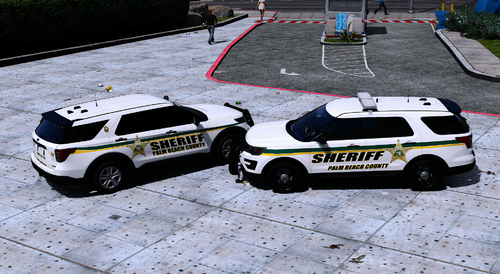
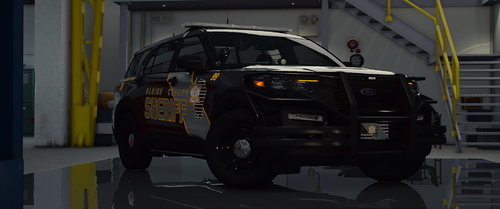
3 Screenshots

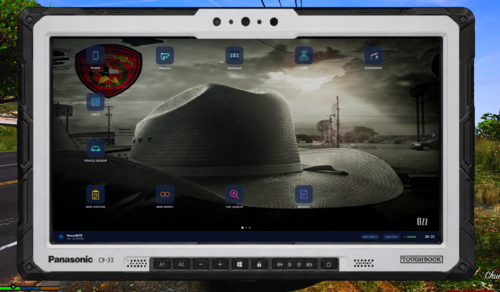
PolizeiComputer ist ein Addon für Computer+ 
Mit PolizeiComputer wird eure Polizeiarbeit noch ein stück Realistischer 
denn jetzt könnt ihr auch eure Berichte schreiben und die jeweiligen Straftaten auswählen. 


===================================================================================================== 
INSTALLATION 
1.Lad dir LSPDFR Computer+ 1.3.5.0 von LSPDFR runter (http://www.lcpdfr.com/files/file/11453-lspdfr-computer/ 
|| 
2.geh zu"\Grand Theft Auto V\Plugins\LSPDFR\ComputerPlus\" und ersetzte alle Datein mit denen aus 
dem rar archiv. 

3.Startet das Spiel 
===================================================================================================== 


CREDITS 

-PieRGud 
-Stealth22 
-AlconH 
-Fiskey111 
-Albo1125 
-LtFlash 
-ainesophaur 
-Ger-PolizeiZollMods
User Feedback

Recommended Comments

The.Leopard

Members

Es sind noch nicht alle Punkte eingedeutscht, wird das noch kommen?

GerPolizeiZollMods

Members Author

vor 19 Stunden schrieb The.Leopard:

Es sind noch nicht alle Punkte eingedeutscht, wird das noch kommen?

Ich werde es versuchen^^ 

Aber ich weiß noch nicht so recht wie ich dass anstellen soll weil das Menü anscheinend in der .dll Datei ist und ich noch nicht weiß wie ich das Abändern kann.

Aber ich werde mich mal rein lesen:)

(edited)

Schön, gefällt mir!

Edited by AgentDZN

Create an account or sign in to comment

Latest Mods

Account

Navigation

Search

Search

Configure browser push notifications

Chrome (Android)
  1. Tap the lock icon next to the address bar.
  2. Tap Permissions → Notifications.
  3. Adjust your preference.
Chrome (Desktop)
  1. Click the padlock icon in the address bar.
  2. Select Site settings.
  3. Find Notifications and adjust your preference.