


Do you want to have your backup to wear EUPFR uniforms on UltimateBackup? Well, this is the mod for you!
Complete set of files for Ultimate Backup to have EUP Uniforms from the newest version of:
I made this because UltimateBackup+ is not updated to support EUPFR 8.3, only 8.2
Took the backup inspiration from the EUPFR's legacy LSPDFR backup files in lspdfr/data/custom folder
Every agency is included with variations.
Required before using these files:
INSTALLATION
Put the plugins folder inside your GTA5 folder
Edited by datamasqin
Description layout changes
What's New in Version 1.0.1
Released
Folder mapping and a couple of bug fixes:
Swat will now spawn with 6 units, earlier it only spawned with 1
Noose would not spawn earlier, that is now fixed and also adjusted to 6 units

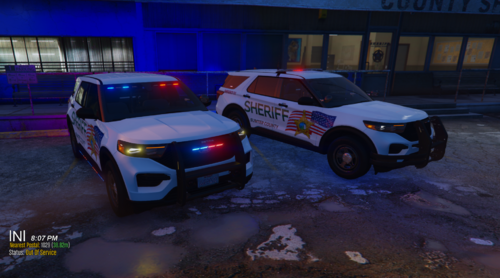
![Blaine County Sheriff Department [DLS v2,REFLECTIVE,ADDON]](http://s3-screenshots.int-cdn.lcpdfrusercontent.com/resize/500/-/monthly_2026_06/GTA52026-06-2115-24-24.thumb.png.ee754c55d1965a17c363ae191f88ae13.png)

![North Carolina State Highway Patrol EUP Minipack [FIVEM & SP]](http://s3-screenshots.int-cdn.lcpdfrusercontent.com/resize/500/-/monthly_2026_06/2676230_20260624200529_1.thumb.png.9a069679af96ceeb7f8a335b86869831.png)

.thumb.png.aba303ef3347895c10dd77447e0939d1.png)
.thumb.png.48f7634114fcf3c9dcd9640b767efa15.png)
.thumb.png.36a20ba37d2f72ab290a620325b92fcf.png)
.thumb.png.5919dc9dd354252d0c596d9817ce3469.png)
Recommended Comments
Create an account or sign in to comment