


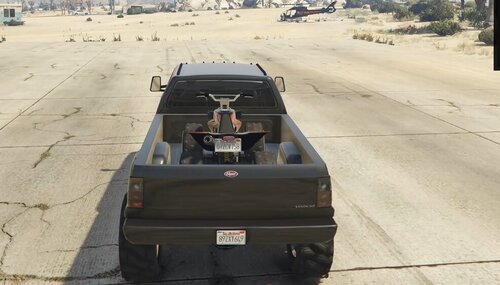
Welcome to my first post with a modification for LSPDFR that adds the ability to call Merryweather security as a backup. This is the first version of my modification, which includes: 1. Patrol Unit - a unit patrolling certain objects and responding to robberies and the like. 2. Tactical Unit is a special purpose team with a large number of machines at its disposal. They are called in for special occasions and to help patrol security units. 3. Department of Public Safety - a private department of public safety that helps law enforcement officers to deal with street riots or the like. 4. Air Guard - air support for the tactical team.
🦅Merryweather Security Consulting🦅
Installation: Copy the contents backup.txt and paste it at the very bottom before </Agencies> in the file GTA5/LSPDFR/data/agency.xml
EUP Installation: Copy the contents backup.txt and paste it at the very bottom before </Agencies> in the file GTA5/LSPDFR/data/custom/agency_eupfr.xml
Merryweather Security Info: clickable


![[ELS-Hybrid | DLC/Addon] Oroville Police 2020-2025 FPIU Pack](http://s3-screenshots.int-cdn.lcpdfrusercontent.com/resize/500/-/monthly_2026_07/4.thumb.png.643c4e7b1565412c94a6df71a9e2202c.png)




Recommended Comments
Create an account or sign in to comment