Skip to content
View in the app

A better way to browse. Learn more.

LCPDFR.com

A full-screen app on your home screen with push notifications, badges and more.

To install this app on iOS and iPadOS
  1. Tap the Share icon in Safari
  2. Scroll the menu and tap Add to Home Screen.
  3. Tap Add in the top-right corner.
To install this app on Android
  1. Tap the 3-dot menu (⋮) in the top-right corner of the browser.
  2. Tap Add to Home screen or Install app.
  3. Confirm by tapping Install.

Oklahoma Based MEGA Server PACK | 12 Departments 1.0.0

(0 reviews)

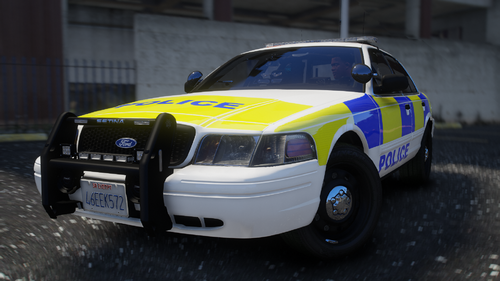
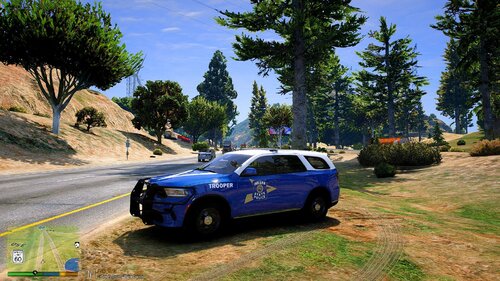
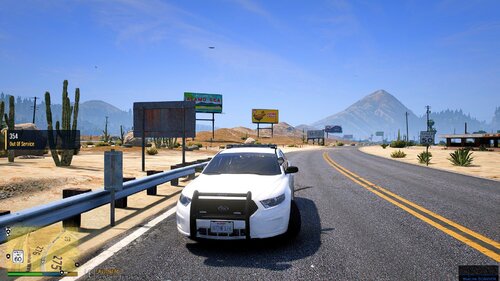
12 Screenshots

I was a developer for an Oklahoma Server that recently closed and this is the EUP made for that server. It has a bunch of departments. I have a bunch of addon vests and paid assets, if you want the TEXTURES join my discord [https://discord.gg/wyKSv2CBGf] but I will not send them until you prove your purchase of said assets.


If you want the patches and alike for SOP's DM me 

Class A-C
Tee Shirt
Polo
BDU's Long And Short
Badges

and MUCH MORE


The Departments are
OSBI   -   Oklahoma State Bureau of Investigations
OHP   -    Oklahoma Highway Patrol
OPW  -    Oklahoma Park Rangers
OGW  -    Oklahoma State Game Wardens
TPD    -    Oklahoma State Transit Police
OCSO -    Oklahoma County Sheriff's Department
LCSO  -    Lincon County Sheriff's Office

CCSO -    Canadian County Sheriff's County
OCPD -    Oklahoma City Police
GPD   -     Guthrie City Police
EPD   -     Edmond City Police
 

Edited by Luke McGlocklin


Short Description

A full Oklahoma server worth of EUP

User Feedback

Recommended Comments

any chance to install them to singleplayer ?

ranger745

Members

how wouldyou DM me 


christopher109

Members

will you be adding female eup to this pack ? 

blk07shelbygt

Members

Discord invite invalid. Is there any way you can share who you got the paid assets from so we can pick them up?

Create an account or sign in to comment

Latest Mods

Account

Navigation

Search

Search

Configure browser push notifications

Chrome (Android)
  1. Tap the lock icon next to the address bar.
  2. Tap Permissions → Notifications.
  3. Adjust your preference.
Chrome (Desktop)
  1. Click the padlock icon in the address bar.
  2. Select Site settings.
  3. Find Notifications and adjust your preference.