


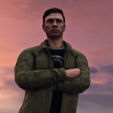


THIS IS ONLY FOR SINGLE PLAYER.
NOT OFICALLY PART OF EUP
THIS IS NOT A TEXTURE EDIT. THIS PED WAS EDITED BY ME IN ZMODELER 3
YES I'M THE REAL AUTHOR. J9090 IS JEFFREYZZZ3304 HERE.
I made a LSPD EUP Ped model.
Instructions:
Download the file(Should be done)
Import the files to C:\Program Files Grand Theft Auto V\update\x64\dlcpacks\eup\dlc.rpf\x64\models\cdimages\eup_componentpeds.rpf\mp_m_freemode_01_male_heist
If no EUP, import into Grand Theft Auto V\update\x64\dlcpacks\mpheist\dlc.rpf\x64\models\cdimages\mpheist_streamedpeds.rpf\mp_m_freemode_01_male_heist
Done
Required:
OPENIV
Thank you
J9090
CREDITS
AlexAshfold for EUP and inspiration.
Oleg for Zmodeler 3 and Tips
Gta5-mods and lcpdfr for hosting file
Thank you.
P.S:This was my third attempt on a ped. Please rate low. This is just a fix to a tiny detail. Thank you for reading to the bottom.
Feel free to include this in a pack.
BUGS
UV mapping is not great. The awkward shape of the original texture makes it challenging to UV map it.
Oleg for Zmodeler 3 and Tips
Gta5-mods and lcpdfr for hosting file



![[NON-ELS / Addon] 2018 Dodge Charger LSPD - S1llysWorkshop](http://s3-screenshots.int-cdn.lcpdfrusercontent.com/resize/500/-/monthly_2026_10/Screenshot2026-10-11174544.thumb.png.775286738f654215946d06abe69b1344.png)

![[DLS/Replace/Add-on] Los Santos Police Pack](http://s3-screenshots.int-cdn.lcpdfrusercontent.com/monthly_2026_10/preview.thumb.png.1bb5c94fff36a740d5cddefa59aca236.png)


![[FiveM Ready] LACoFD Battalion 6 Chevrolet Suburban | Non-ELS | 32 Sirens](http://s3-screenshots.int-cdn.lcpdfrusercontent.com/resize/500/-/monthly_2026_10/photo1.thumb.png.a26737ac0dbfebf3d7207875866d0f75.png)

Recommended Comments
Create an account or sign in to comment