massi8769
Members
-
Joined
-
Last visited
Everything posted by massi8769
-
I will finish it. Have a full list of the audio files. [Edit] List is now "complete". For some audio files i could not figure out the actual sound. Those are marked with a ?.
-
@libertoAre you still working on the list?
-
Okay. I have done about 75% of the files. Planned to release it tomorrow.
-
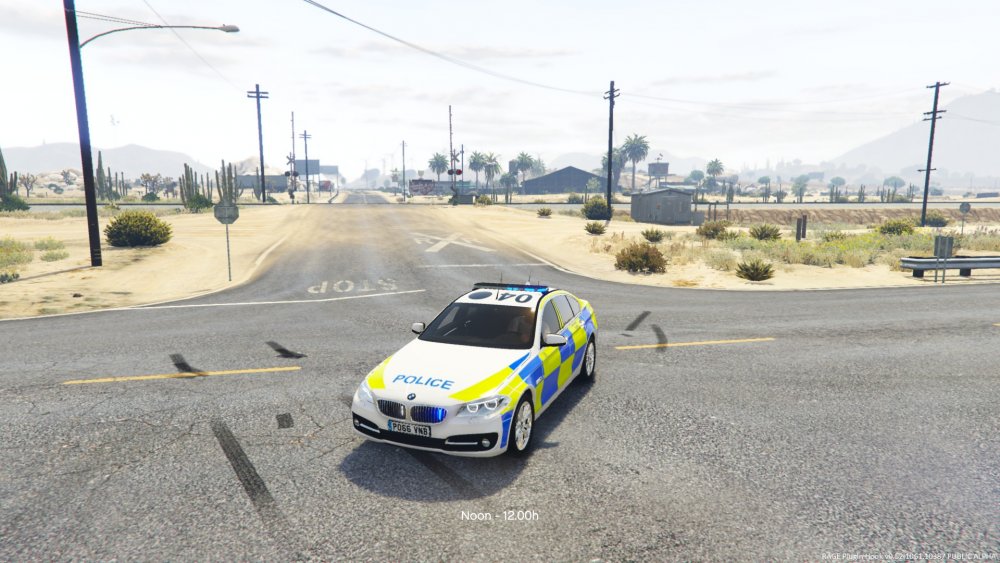
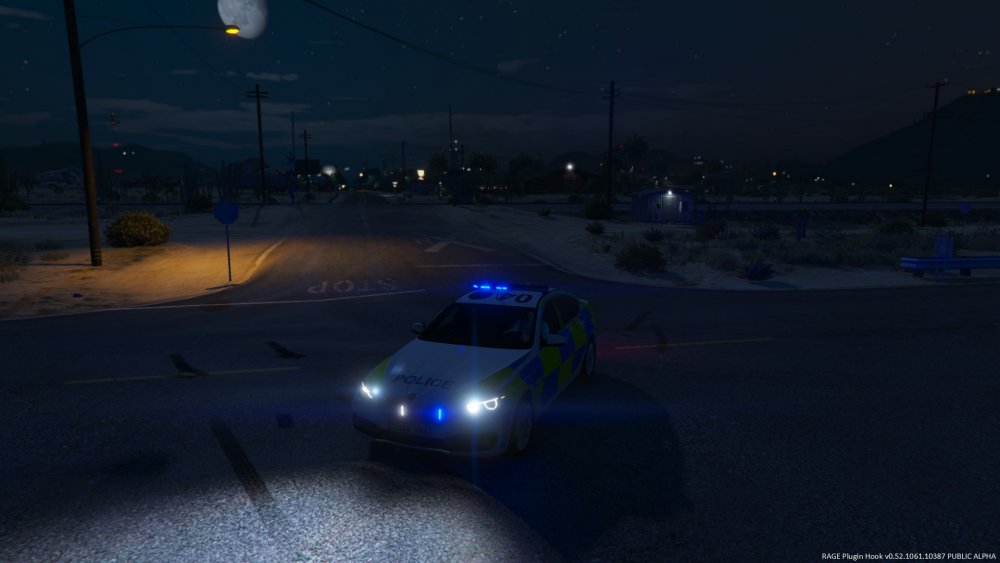
you can try to change some settings in your visualsettings.dat which is like OfficerSmith4196 said in: go down to car.sirens and add/change the following line to your likings. car.sirens.SpecularFade 15.0 car.sirens.ShadowFade 35.0 car.sirens.intensity 70.0 car.sirens.radius 50.0 These are the settings I am using with ingame screens. Furthermore I don't use any visual mod.
-
If you add <Phrase Event="PoliceSmartRadio.Panic" Priority="10"> <Word PreferredText="shots"/> <Word PreferredText="fired"/> </Phrase> to your default.xml "shots fired" will trigger the panic button. But it will also send twice the backup because the Event="VocalDispatch.ShotsFired" will also listen to "shots fired" by default. To fix this you can either delete all phrases with Event="VocalDispatch.ShotsFired" or just rename VocalDispatch.ShotsFired to PoliceSmartRadio.Panic
-
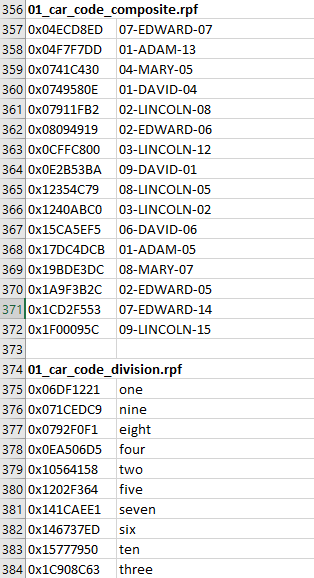
Does such a list exist yet? If not i am currently working on one which look like the attached file.