Olanov
Members
-
Joined
-
Last visited
Everything posted by Olanov
-
Don't drag me into the darkside! NOOOOOO!
-
But i liek to play realisticly. :sad:
-
-
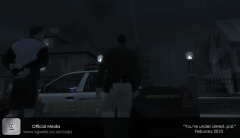 I love that skin for the officer.
 -
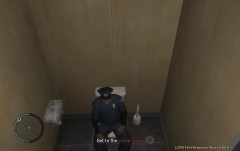 So, he's going to shit in his pants or what? :tongue:
 -
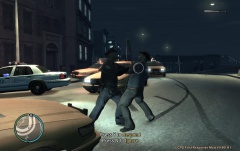 Invasion of taxi cabs! :tongue:
 -
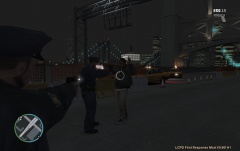 It doesn't look like he needs assistance...
 -
I shall test it.
-
I like the los angeles mod for it. I love trying to keep the city in peace, but after 15mins it's all big chaos with everyhting exploding everywhere.
-
I can't stop laughing at your story! :biggrin:
-
Times are changing.
-
inb4 Activision suing me. :biggrin:
-
Gimme your specs.
-
I did, he didn't reply. :biggrin:
-
Then patch it to 1.0.6.0.
-
Yup.
-
The newest version of LCPDFR only works on 1.0.6.0 or 1.0.7.0. Also, you're supposed to download 0.90F first, then the hotfix.
-
He's bitching about the fact that i used some sound effects from CoD 4: Modern Warfare. Who cares? There are more videos with CoD sound effects on them. Some youtubers are just plain dumb.
-
Exactly.
-
...Not really. Discuss.
-
In EFLC there is no original police skins. All new ones are there. So you can choose one of the new skins.
-
-
It might be better for you! But i get 40-50fps with 1.0.7.0. No kidding. :D
-
Well... The newest versions of LCPD: FR as far as i remember right that is, does not work with the older versions of GTA IV. I could be wrong though.
-
Oh yes, use an older version of LCPD: FR?