
Han'SGarage
Members
-
Joined
-
Last visited
Everything posted by Han'SGarage
-
It looks great man
-
-
-
-
-
-
That skin looks great man
-
 Great work as always! Thanks for sharing!
 -
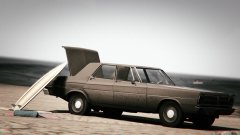 lovely
 -
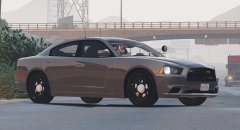
-
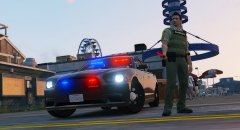
-
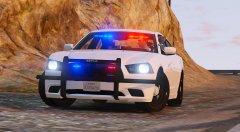
-
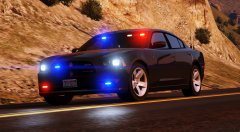 Sorry, I hate side runners man. I'd love to put inner edge...I can't find a inner edge that I can get permission for it. That's why I'm using default lighting system. But I do know those default lighting look little off... so I scratch made something similar. Also made some generic light heads fro grill and side window that looks little more close to real life one. Not in these picture tho.
 -
Yea, I wanted to use something else but can't find the interior light bar that I can get permission. So I will be using default lights.
-
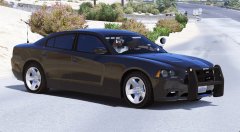 I'd love to. Unfortunately, there are no DEV gps available.
 -
Maybe you can put them on as extras.
-
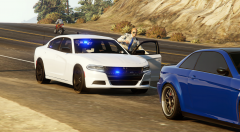
From the album: CHARGER [GTA V]
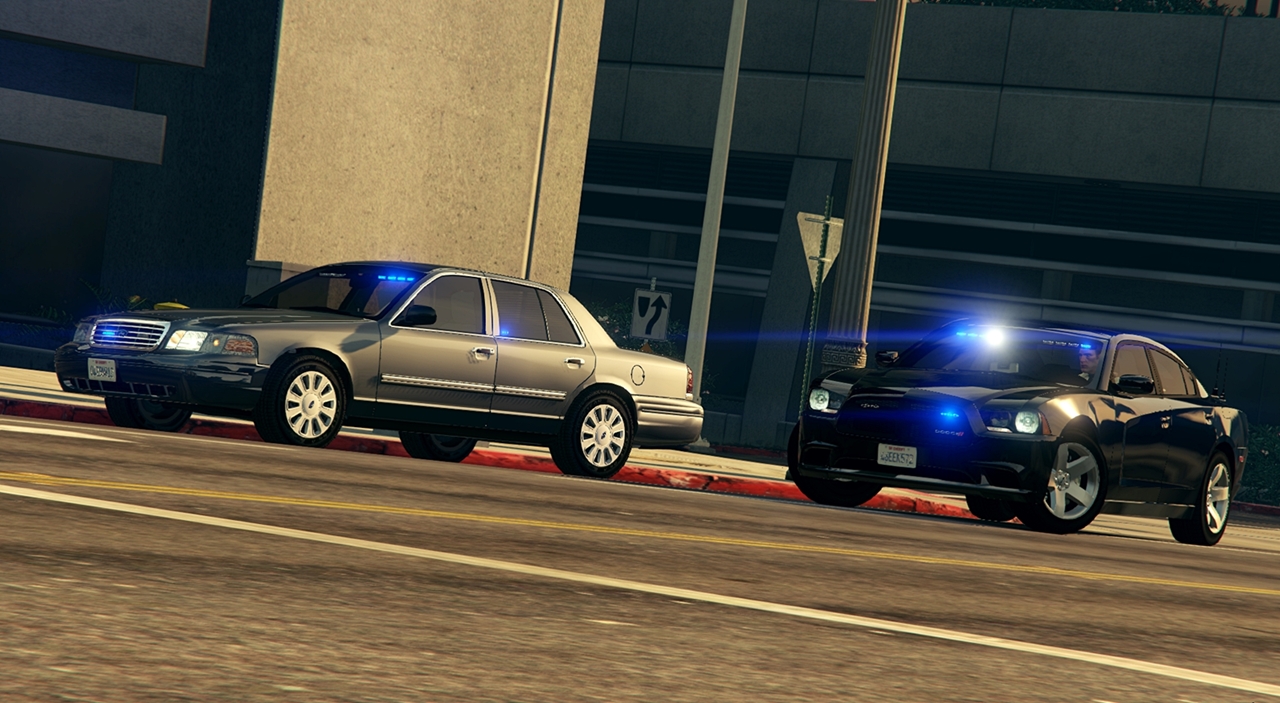
Base model is almost done, so I started working on unmarked version. Just concept and testing for now.© NIGHTKID GARAGE
-
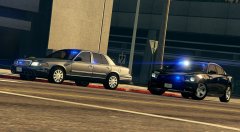
From the album: CHARGER [GTA V]
Base model is almost done, so I started working on unmarked version. Just concept for now.© NIGHTKID GARAGE
-
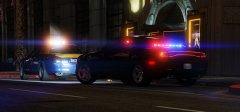
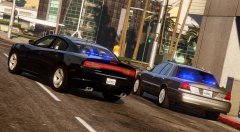
From the album: CHARGER [GTA V]
Base model is almost done, so I started working on unmarked version. Just concept and testing for now.© NIGHTKID GARAGE
-
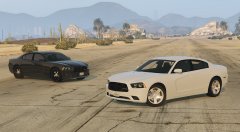
From the album: CHARGER [GTA V]
Converted another Charger and scrap the old version (Forza + simraceway). There were some missing or incorrect parts on old charger, I tried to focus on fix those this time. I'm not an expert in 3d modelling or anything but I tried.... :p - New steering wheel - Added gear shifter - Added base model radio© NIGHTKID GARAGE
-
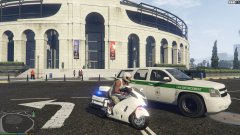 I was gonna do something similar. Nicely done!
 -
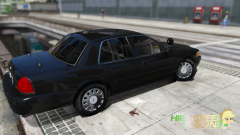 Thanks :p any visual mods? That reflection man....
 -
looks great
-
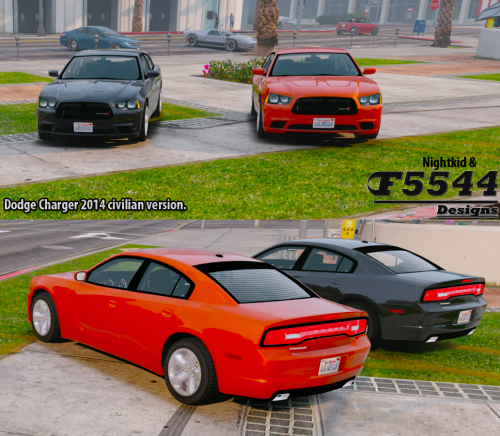 We know the light setup is incorrect but we had to setup that way because of gtav lighting system. We couldn't duplicate the real life lighting setup, I spent pretty good amount of time to try but never worked like we wanted to. so...give us some break on that part.
- 16 comments
- 8 reviews
-