
Han'SGarage
Members
-
Joined
-
Last visited
Everything posted by Han'SGarage
-
-
-
-
In Speed We Trust
-
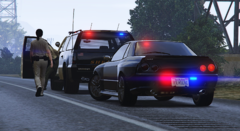 Unmarked Elegy
-
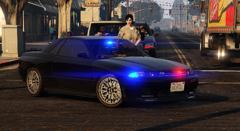 Unmarked Elegy
-
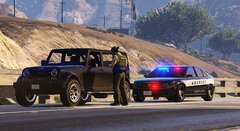 #Vanilaworks
-
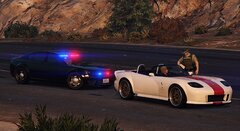 #Vanilaworks
-
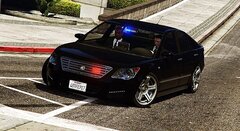 #Vanilaworks
-
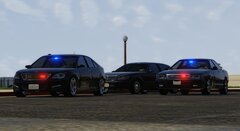 #Vanilaworks
-
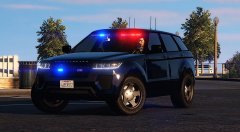 LSSD is ballin
-
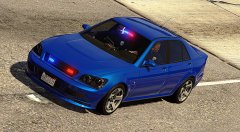 LSPD Unmarked Sultan
-
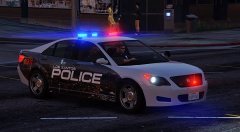 Asterope Patrol Vehicle
-
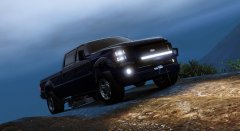 Sandking SSV
-
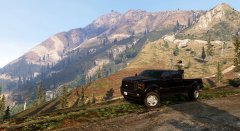 Sandking SSV, Sadler HD or whatever...
-
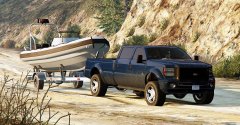 Sandking SSV, Sadler HD or whatever...
-
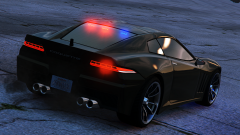 Unmarked Coquette
-
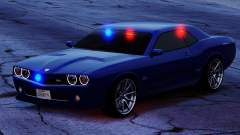 Unmarked Gauntlet
-
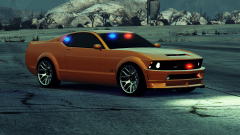 Unmarked Dominator
-
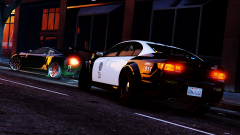 Fugitive PPV is available now!
-
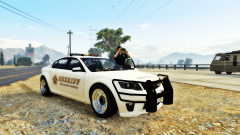 Fugitive PPV is available now!
-
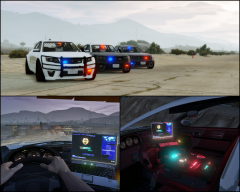 Cheval Fugitive PPV - Interior
-
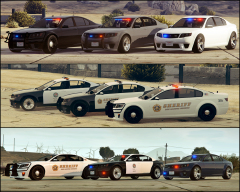 Cheval Fugitive PPV
-
-
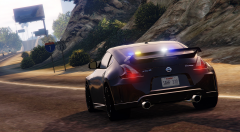
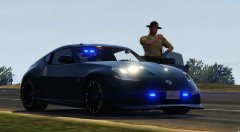 made it awhile ago
 -
-
-
-
-
-
-
-
-
-
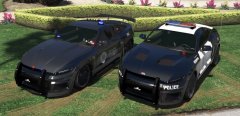 Long time no see my friend! Still doing great work!
 -
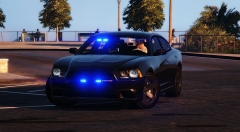
From the album: CHARGER [GTA V]
-
-
Unmarked Charger
-
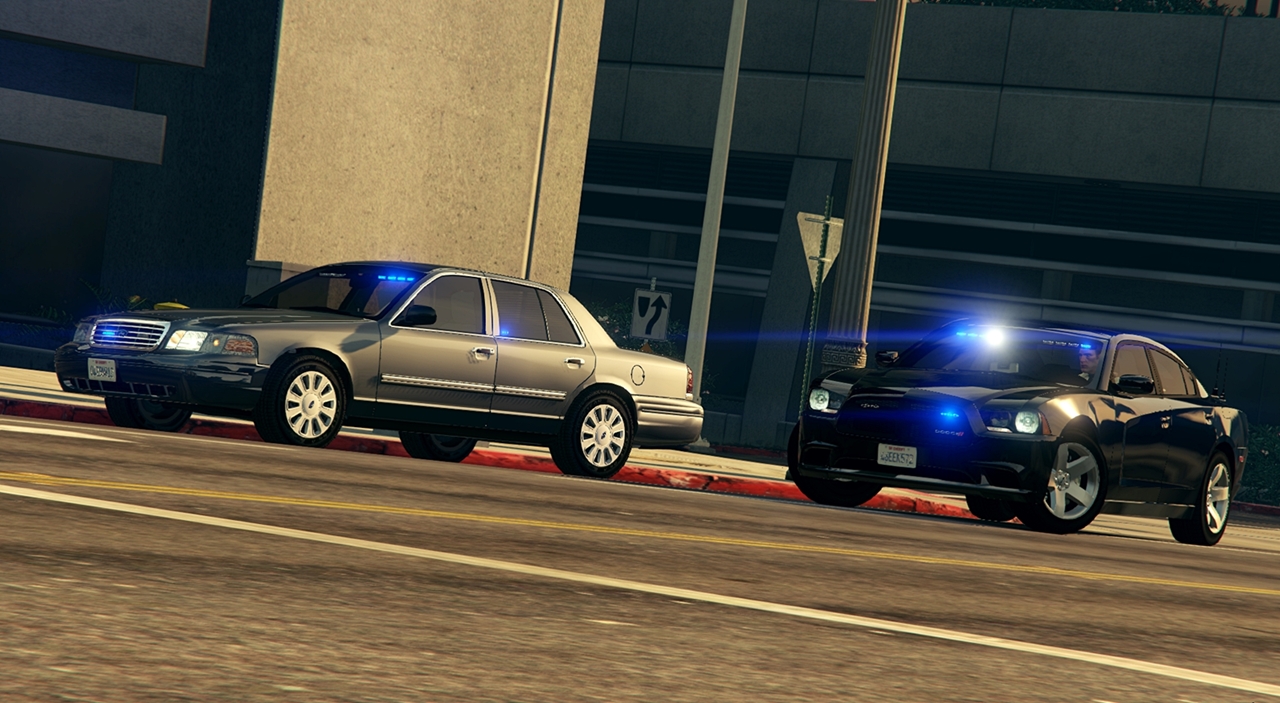
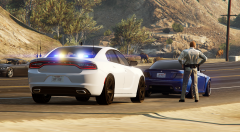 Traffic stop
-
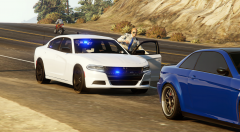 Traffic stop
-
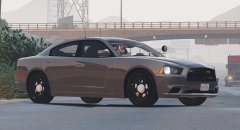 Unmarked Chager Pack Concept - 2
-
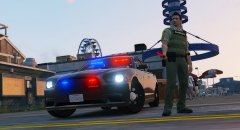 Unmarked Chager Pack Concept - 2
-
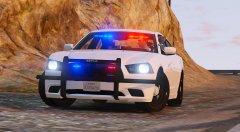 Unmarked Chager Pack Concept - 2
-
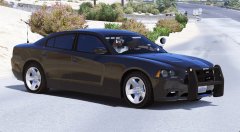 Unmarked Charger Pack Concept
-
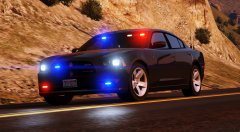 Unmarked Chager Pack Concept
-
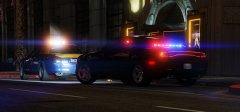 Unmarked Charger Pack Concept
-
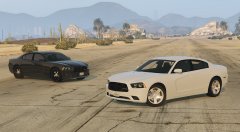 2014 Charger
-
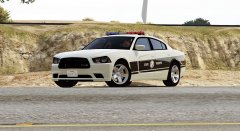 Charger with light bar
-
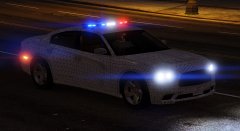 Charger with light bar
-
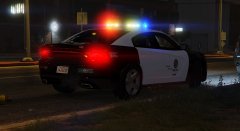 LAPD 2015 Charger
-
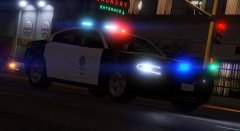 LAPD 2015 Charger
-
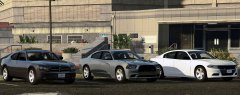 Chargers
-
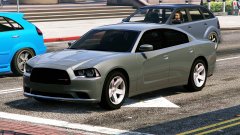 2014 Charger
-
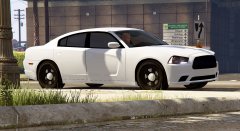 2014 Charger
-
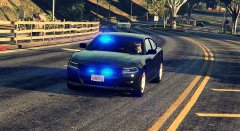 Unmarked 2015 Charger
-
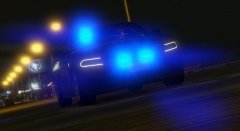 Unmarked 2015 Charger
-
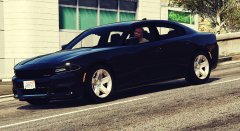 2015 CHARHER
-
-
From the album: Vanilla Cars [GTA V]
Unmarked Baller2 -
Always wanted to work on this car!
-
I might release some oh them if people want them. Not anytime soon tho, I've been just messing with multiple default cars and working on 4-5 cars currently. Can't really tell when will be released tho. Trying to stay with lore lighting and lore parts for every cars.
-
From the album: Vanilla Cars [GTA V]
LSPD Aggressive driving unit Sultan. -
Maybe one day lol Thanks!
-
Wheels are from default buffalo and slightly modified.
-
From the album: Vanilla Cars [GTA V]
Asterope Patrol Vehicle -
Pretty cool video, great job man!
-
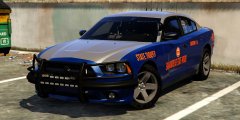 Love it!