
Han'SGarage
Members
-
Joined
-
Last visited
Everything posted by Han'SGarage
-
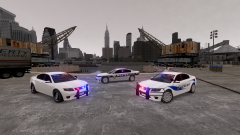
From the album: Vanilla Cars
Changed the lighting setup and made some generic skins for these. I love these! -
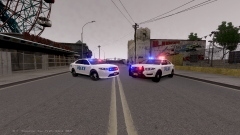 I pretty much did same thing on Cheval Fugitive. Check it out :)
 -
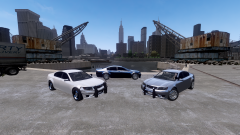
From the album: Vanilla Cars
with different push bars and wheels. -
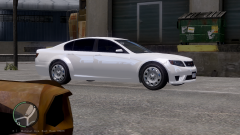
From the album: Vanilla Cars
Random pic -
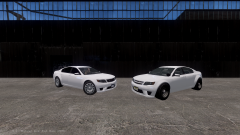
From the album: Vanilla Cars
I always thought this would be cool police car. Started work on this and found out there was a small issue on this car ( Car was uneven. Right side of the car was shifted to toward and upward a little) that small issue bothered me and ended up redo the whole right side again lol One on the right is the original (model by Yard1). Changed few things to make this look little closer to real life caprice (one on the left) - Narrowed fender arch - Shorthen the wheel base - Changed the dimension of various area - Different wheels - New grill - Smooth out body parts -
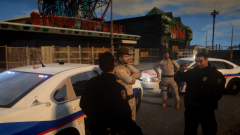 way too cool bro!
 -
Haha yeah, It came out better than I thought. Thank you!
-
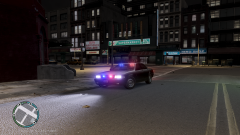
From the album: Vanilla Cars
-
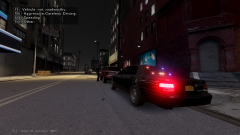
From the album: Vanilla Cars
Traffic stop -
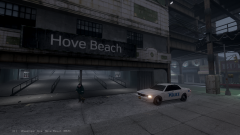
From the album: Vanilla Cars
Spotted at Hove Beach station -
From the album: Vanilla Cars
I've been playing with vanilla GTA5 cars by Lt.Caine. Little modification to make it bit looks like real world Taurus.(one on the left) -
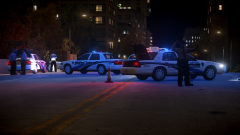 Man I love all your pictures!
 -
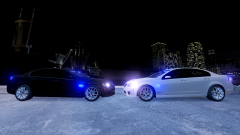
From the album: Unmarked G8 GXP
-
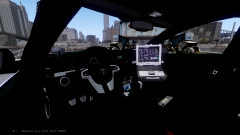
From the album: Unmarked G8 GXP
-
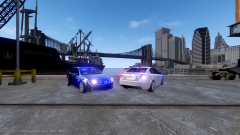
From the album: Unmarked G8 GXP
-
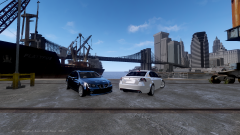
From the album: Unmarked G8 GXP
-
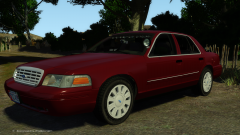 outstanding man!
 -
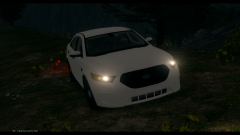 pretty damn awesome man
 -
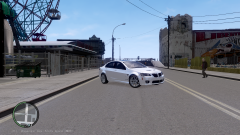
From the album: Project G8 GXP
I always wanted to have cool unmarked G8. My first conversion ever(FM4 to GTA4). I still have long way to go but very happy (first try and work with no error so far!) -
I always wanted to have cool unmarked G8. Converting this now and hopefully I can mess with this soon!
-
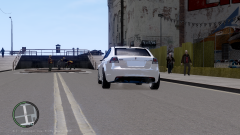
From the album: Project G8 GXP
I always wanted to have cool unmarked G8. My first conversion ever(FM4 to GTA4). I still have long way to go but very happy (first try and work with no error so far!) -
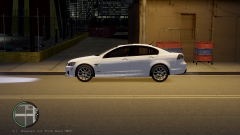
From the album: Project G8 GXP
I always wanted to have cool unmarked G8. My first conversion ever(FM4 to GTA4). I still have long way to go but very happy (first try and work with no error so far!) -
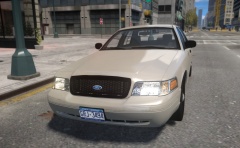 Yes please!
 -
You can do that with indicator script. Enable permanent, assign the key in indicator.ini then you can use them as steady burn mode.
-
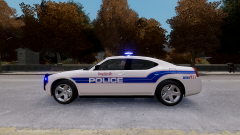
From the album: Fayetteville Police Department (NC)
WIP