Gump
Members
-
Joined
-
Last visited
Everything posted by Gump
-
-
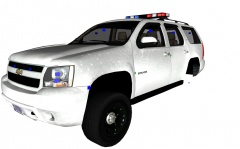
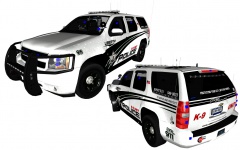
I've put a lot of work into this Tahoe for you guys! So hope you enjoy it! It's a Chevrolet Tahoe K-9 unit. Pretty much a Christmas tree. It has hidden APLR's in the interior on the lightbar and one on the hitch receiver.
- 11 comments
- 1 review
-
-

- 1
-
-
I don't mind saving the...umm... world, but I rather not have to go to the big cranks category to do that.
-
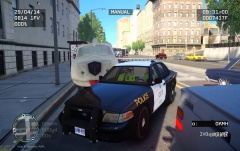 "You fellas been doin' a little boozin' have ya? Suckin' back on grandpa's old cough medicine?
 -
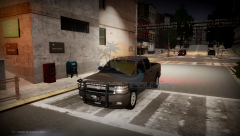 Both of yall are idiots...That's clearly a Isuzu Harley Davidson..
 -
I'll do it for you ;)
-
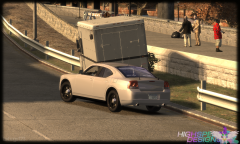 Probably RealityIV or something like that.
 -
Do you have any more(detail) pictures?
-
Lol. Sterling considers that change in his pocket..
-
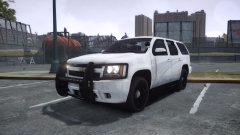
From the album: My cars
Got a glimpse of one of LCPD's newer K-9 unit Tahoe's. -
Yep! '?do=embed' frameborder='0' data-embedContent>>
-
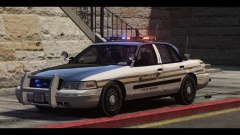 http://gtapolicemods.com/downloads.php?do=file&id=797
 -
-
Oh.. That I have no clue about. haha.
-
If you mean in game with trainer, you got to edit the vehicles.IDE in Common/Data. Then go to the vehicles you want to edit and add "+livery" EX: police2, police2, car, POLICE2, POLICE2, VEH@STD, VEH@STD_RI1, 100, 999, 0.2348, 0.2348, 0.2, 2, 1.0 ,1, ext_requi+ext_strong+livery
-
Haha, that's cool!
-
 Really? Works fine for me?
 -
From the album: My cars in Zmod
Thought i'd add a Whelen Justice, looks pretty sexy imo! -
 Put the evidence in the car. Put the evidence in the back of the car.
 -
Great shot! Looks like something NCIS.
-
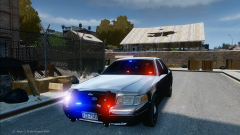 Looks great!
 -
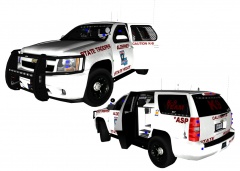
From the album: My cars in Zmod
This will be released.Feel free to give suggestions or something you'd like to see. -
-
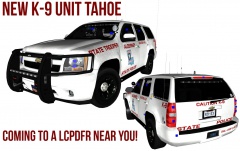 Yeah, I changed my name to Gump, as a joke, then realized I had to wait 3 months. So I'm embracing it! xD
 -
From the album: My cars in Zmod
With hidden APLR's.