Chappie
Members
-
Joined
Everything posted by Chappie
-
-
 <audioNameHash>ruffian</audioNameHash> That line is for specifying what audio files a vehicle should use, and you have it set to use the ruffian which is not a police vehicle, so there will be no police related audio assigned to it. You need to set it to <audioNameHash /> Or, download the meta at the top of the file page as Thehurk mentioned previously. (I recommend this)
- 218 comments
- 42 reviews
-
 I want to make the sexings in the chp oooooooooooooo aaaaaaaaaaaahhhhhhhhhhhhhhhhh very niiiiiiiiiiiiiiiiice.
 -
These are flags, so you want them in the flags line. <flags>flags go here</flags> It should go like this <flags>FLAG_LAW_ENFORCEMENT FLAG_EMERGENCY_SERVICE</flags> flags should separated by a space. Your flags should look something like this. <flags>FLAG_NO_BOOT FLAG_LAW_ENFORCEMENT FLAG_NO_RESPRAY FLAG_IGNORE_ON_SIDE_CHECK FLAG_DONT_SPAWN_IN_CARGEN FLAG_HEADLIGHTS_USE_ACTUAL_BONE_POS FLAG_BIKE_CLAMP_PICKUP_LEAN_RATE FLAG_REPORT_CRIME_IF_STANDING_ON</flags> Alternatively, you can download the meta at the top of this file page, below the "About This File"
- 218 comments
- 42 reviews
-
Can't pull anyone over? Have a civilian horn? Add these flags to the vehicles.meta FLAG_LAW_ENFORCEMENT FLAG_EMERGENCY_SERVICE OR Download the attached meta file to this location! Install here: C:\Program Files (x86)\Steam\steamapps\common\Grand Theft Auto V\mods\update\update.rpf\common\data\levels\gta5 vehicles.meta
- 218 comments
- 42 reviews
-
-

- 1
-
-
I put together the meta file for @TheHurk and I made a woopsie with the vehicles.meta (I forgot a flag or two and a few other things) Yup, my fault. The following meta file should fix it for you guys. Install here: C:\Program Files (x86)\Steam\steamapps\common\Grand Theft Auto V\mods\update\update.rpf\common\data\levels\gta5 vehicles.meta
- 218 comments
- 42 reviews
-
-
- 1
-
-
This should be it! C:\Program Files (x86)\Steam\steamapps\common\Grand Theft Auto V\mods\update\update.rpf\common\data\levels\gta5
- 218 comments
- 42 reviews
-
-
- 2
-
-
-
 I believe Thehurk did all of the development, they just provided the model, but none the less, thanks to everyone involved for adding to the community!
- 93 comments
- 36 reviews
-
-
- 1
-
-
-
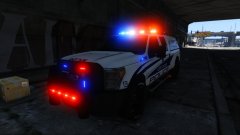 Holy guacamole!!1!
 -
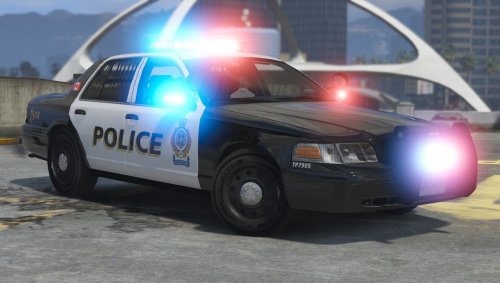 Great job, the model is great. The liveries could be better though, but they should suffice.
- 9 comments
- 10 reviews
-
-
- 4
-
-
-
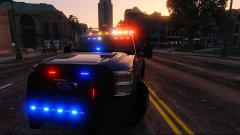 Oh I just noticed that!11!!
 -
-
.jpg.b0267535e266a9c2be00bc30759fee08.jpg) yeah yeah, I feel ya. :P
yeah yeah, I feel ya. :P -
-
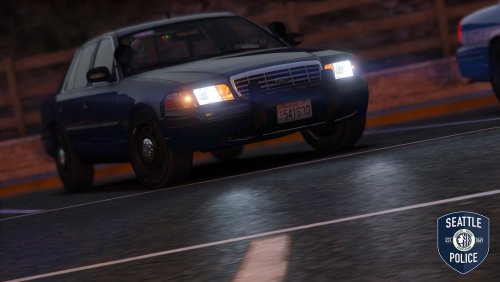 Hey, that's pretty good! Nice job. I think you really nailed the accuracy. There are no issues with the LODs like other users may have suggested. The user complaining of poor LODs must have his settings way the fuck down.
- 19 comments
- 19 reviews
-
-
- 2
-
-
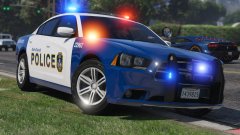 Lookin' good. ;)
 -
I can't fucking wait. I'm so sick and tired of futuristic this, futuristic that.
-
I admittedly didn't read the entire article because, to put it bluntly, I don't really care about the YouTubers, but it's nice to hear about mod creators and community members being spotlighted from now on. Thanks.
-
I don't want to be that guy, but how about a spotlight on a community member that doesn't have a hundred thousand or more subscribers on YouTube. Someone that has been influential in the community. So far it looks like you're only focusing these spotlights on people that bring traffic to the website. Just a suggestion.
-
-
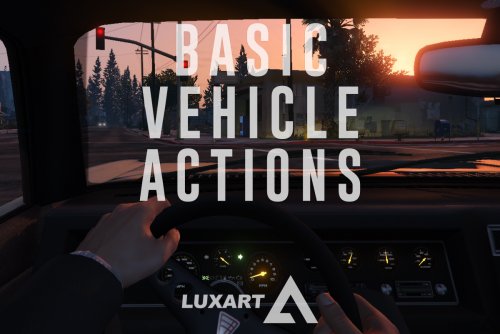 It's the little things that count. If you're into these kinds of mods, this is a must have. Great job Caine.
- 108 comments
- 24 reviews
-
-
- 2
-
-
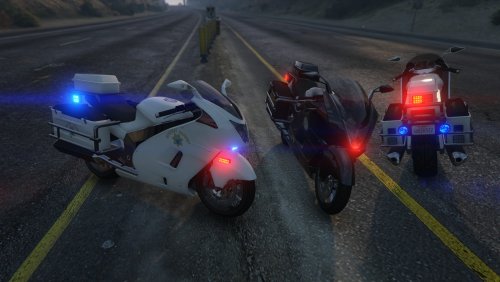 I Pmed you it. Also, nice job on the most recent update. love the antennas!
- 102 comments
- 28 reviews
-
-
- 1
-

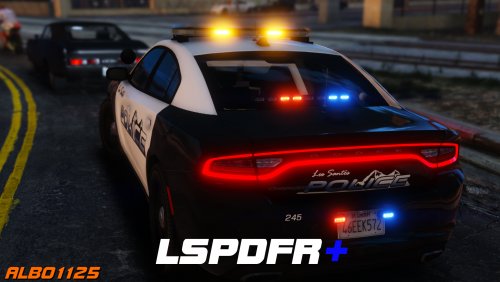

.jpg.b0267535e266a9c2be00bc30759fee08.jpg)