BJ USA
Members
-
Joined
-
Last visited
Everything posted by BJ USA
-
-
-
 nice thanks
 -
-
 nice thanks
 -
-
-
 nice thanks
 -
-
-
 nice thanks
 -
-
-
-
-
-
 Perfect! This update will address what I was talking about! Woot! Excited for this update and future development! Thanks for the hard work man
- 313 comments
- 19 reviews
-
-
"Switching pdComp to STP mode absolutely makes it ignore CDF if present and read the data from STP" Can you have it stop ignoring CDF in STP mode? =) Then it will work accurately with my PatrolMDT mod. It would be STP -> CDF -> pdComp , instead of STP -> pdComp. and my Patrol MDT could grab it from CDF like pdComp would. STP has it's own data like you said... CDF can read the STP data and "put it into" other plugins =) CDF is a listener and it can listen to STP. If you enable CDF to listen to STP, it won't do anything but add functionality. Like you said, CDF isn't creating data, it's listening and allowing other plugins to use it; this is why my PatrolMDT could work the way it does with PR, if STP was not intentionally ignored by CDF (which is how you wanted it, I get it, I'm being selfish lol). I hope that makes sense =)
- 313 comments
- 19 reviews
-
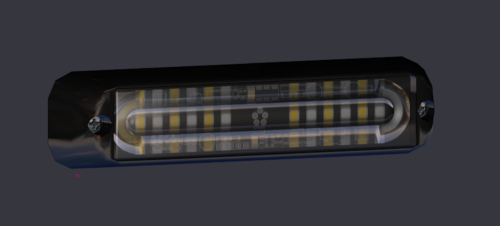 sweet looking
 -
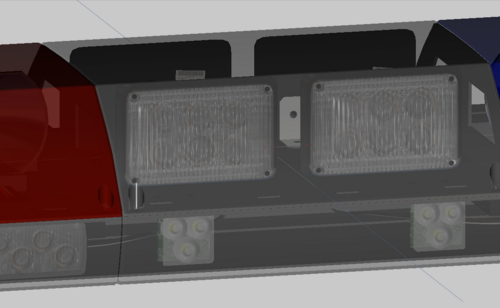 hq
hq -
-
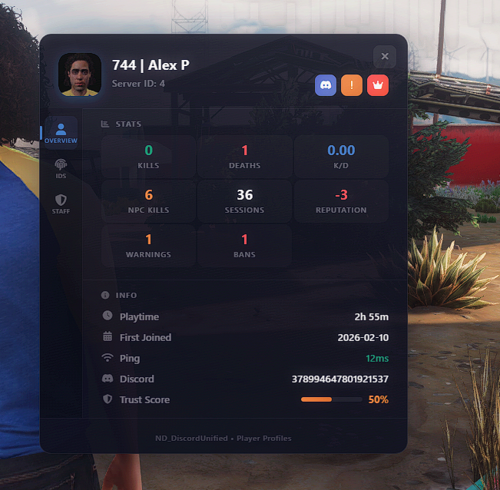 useful, thanks
 -
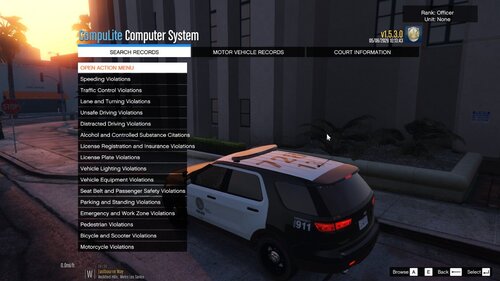 looks thoughtful and complete
 -
 downloaded these, they look good







.thumb.png.c09ae1472c932cb2a02ff9fcd20148f7.png)