
CEO
Members
-
Joined
Everything posted by CEO
-
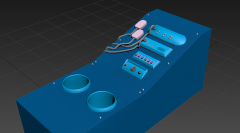 I suggest you use turbo- or meshsmooth tool on some parts to make them look less boxy. Other than that, good work.
 -
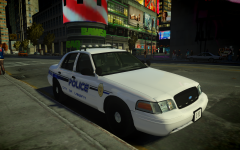
From the album: Kygo's gallery.
I added takedown and alley lights, did some stuff with the body and accurately shaped the mounts, but nothing major. -
 I don't want your babies :D
 -
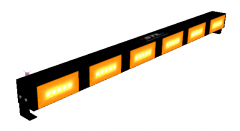 looks good matt.
 -
From the album: Kygo's gallery.
Finshed with my SLR now, If any experienced modder/modeller would like to have this lightbar, please send me a PM. Credits: - Federal Signal Vision SLR modelled from scratch by deco, Mounts and textures by EVI. -
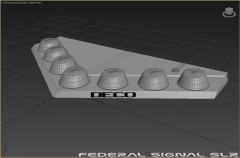
From the album: Kygo's gallery.
Lightbar I'm modelling EDIT: I remodelled it a bit because shapes weren't accurate: "%20alt=http://www.gta-moddi...8fceae027900a2d" /> "%20alt=http://www.gta-moddi...059b182f09adc79" /> -
There's no such thing as a "x2100" just sayin', however there is a "21TR", "21TR Plus", "21TR-EU" and a "21IF". Nice car Beck.
- 24 comments
- 19 reviews
-
-

- 1
-
-
You'll need to redo it. Zmod tends to fuck up your work if you don't move with selected mode on and highlight the parts you want to move. Hope this helped you.
-
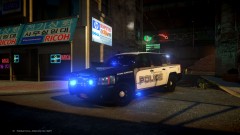 Why do you hope that?
 -
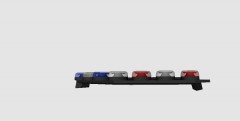 shapes aren't really accurate, but its from sketchup so nothin major is expected lol. good job overall.
 -
I don't think the name will be changed...
-
-
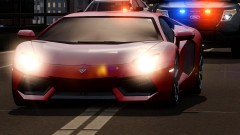 Getting that same gpu soon :D
 -
 Not strobe, its LED ;)
 -
go with the ION (INO in Australian English).
-
-
do keep in mind that alienware is "just" Dell, so I suggest you buy like a toshiba laptop with some good specs and they never let you down! Well thats just personal experience but mkay.
-
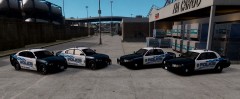
From the album: Kygo's gallery.
Many more to follow! -
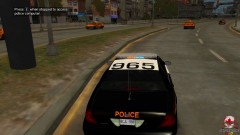 This is my OPP cvpi ;)
 -
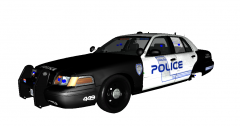 we have our reasons lol. That skin actually was made by me, the font is called "nasalization".
 -
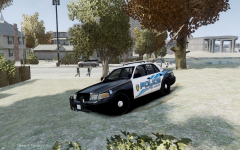
From the album: Kygo's gallery.
features: - KevinDV's Federal Signal Valor. - My new Setina PB-200 pushbar. - Aznairsoftdude's optimized Ford Crown Victoria NOTE: This will be my very last upload to lcpdfr.com but you can still follow my upcoming releases here. -
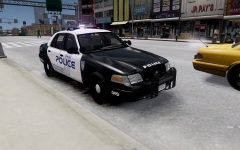 I will. I am doing a small pack of these.
 -
Yes but not on lcpdfr. I have moved my releases from www.lcpdfr.com to www.gta-modding-chest.com .
-
From the album: Kygo's gallery.
A new rambar I made with 3ds max. -
just copy the L0, and rename the L0 part to L1. problem fixed