



CEO
Members
-
Joined
Everything posted by CEO
-
 excuse me? BMW M1...
 -
 Did you just shot the cop laying there? You naughty boy!
 -
 If I wouldn't know any better I'd believe this was a different game...
 -
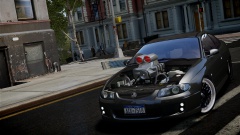 Imagine having this in Europe... You'd be broke after a few kilometers..
 -
F*ck all, Porsche all the way even though if you don't know how to drive a Porsche you're f*cked.
-
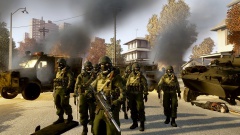 Good guy Russia!
 -
![Ford Explorer Utility [wip]](//s3-gallery.int-cdn.lcpdfrusercontent.com/gallery/album_2124/sml_gallery_45963_2124_634365.png) - Pushbar by BxBugs123* Other than that, nice job!
- Pushbar by BxBugs123* Other than that, nice job! -
 Gotta love the patriotism.
 -
-
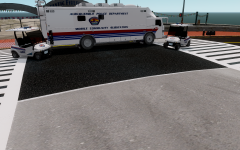 Its a joke for those who get it. Him1250 is practicly in love with APD.
 -
Him1250 is going to --- to this for sure. Censored. --cp702
-
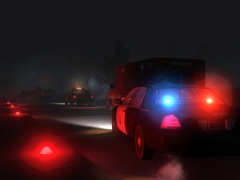 wut... Kanyo... Enb... I don't get it...
 -
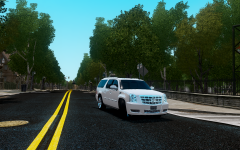 good, however the chrome looks very unrealistic.
 -
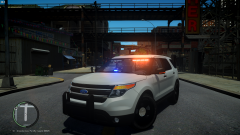 damn I should use my spectralux more often! it looks amazing!
 -
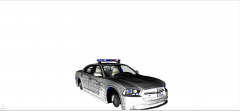 Actually the lightbar needs to be scaled up and moved backwards and down slimory.
 -
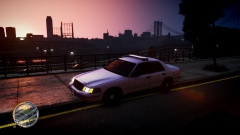 nice, FedSig Integrity!
 -
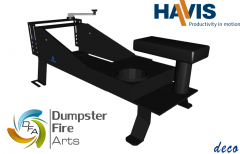
From the album: Kygo's gallery.
Havis Console I modelled. -
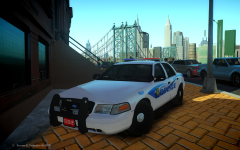
From the album: Kygo's gallery.
Only available on (snip) MODERATOR NOTICELink removed~c13 -
 I never said you should stop lol I just wanted to make you aware that you might be wasting time.
 -
looks good, however.. http://lcpdmods.com/files/file/80-setina-pb-200-unlocked/
-
 Thanks Cj, edited the description.
 -
-
From the album: Kygo's gallery.
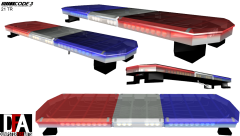
- Code3 21TR modelled and converted by deco, Mounts by Matthias. May be released unlocked on lcpdmods.com -
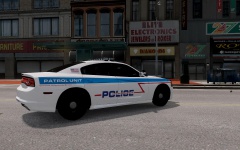 Assassin's Creed 3 Flashbacks...
 -
![2012 Charger (XBR410) [WIP]](//s3-gallery.int-cdn.lcpdfrusercontent.com/gallery/album_1963/sml_gallery_37637_1963_435755.png) Hell no.
Hell no.

![Ford Explorer Utility [wip]](http://s3-gallery.int-cdn.lcpdfrusercontent.com/gallery/album_2124/sml_gallery_45963_2124_634365.png)
![2012 Charger (XBR410) [WIP]](http://s3-gallery.int-cdn.lcpdfrusercontent.com/gallery/album_1963/sml_gallery_37637_1963_435755.png)