Andrew.
Members
-
Joined
-
Last visited
Everything posted by Andrew.
-
 You can name it LCIC (Liberty Crime Information Center)
 -
-
-
-
-
 For mimickme, how come i have to be infront of the vehicle for it to work? How do i change it?
- 3,646 comments
- 306 reviews
-
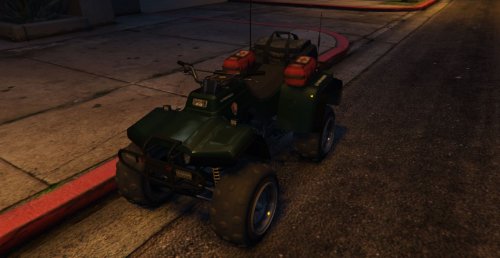 I followed your directions in the readme to the T, i did what you just said and i still cant spawn it
- 58 comments
- 5 reviews
-
Now, how did he make it work so he can be behind the vehicle in question? It has me moving to the front to use it
-
Thank yall, greatly appreciate it!
-
Either im stupid or blind....or maybe both. Does anyone know what mod this is? https://youtu.be/Byev0y2Vrks?t=4m44s The vehicle starts mimicking you. Thats really all i can say lol. Any help would be appreciated!
-
-
 God Damn look at that Sexy beast
 -
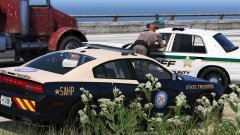 Yeah, the notification system is, eh. Anyway, cant wait man. Ive been dying to see this released! Keep up the good work!
 -
We havent had any updates in a while, whats the situation?
-
-
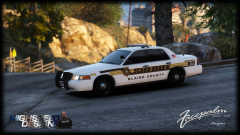 It actually looks perfect with the gradient. I agree, for some reason it does feel like its missing something...but either way, it looks awesome Farknockr. Great work as always!
 -
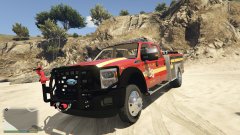 Looks awesome
 -
Dude! I absolutely love this!! Do you need any help with any IRL pictures or anything? Let me know!
-
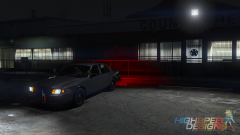 What graphic mods etc are you using?
 -
 ARGHHHHH im in love so much. Amazing work!
 -
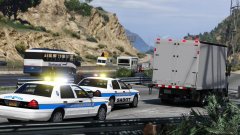 I LOVE IT! I want this...so bad.
 -
These look beautiful!!
-
-
-