


beryllinthranox
Members
-
Joined
-
Last visited
Everything posted by beryllinthranox
-
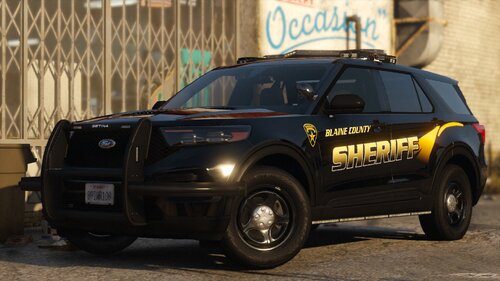 Hi, I really like the vehicles, liveries and the placement of the lights. Upon checking them as out as an addon in-game, I've found some things that might need to be fixed. These discrepancies can also be found in the replace version. On vehicles 20fpiu2 and 20fpiu7, the livery (livery_sign_4) shows on the back. The spelling here should be "Professional Excellence". Vehicle 20fpiu5 seemingly only uses Extra1 & Extra2 (or 3 & 4) in its lighting setup, instead of all 4 extras, not allowing it to use the full range of ELS patterns. The XML files contain blue-blue lighting setup, while the cars in-game have red-blue lights. For all vehicles, Extras 1&2 and 3&4 are switched in X positions (left/right). If the light on the left burns, it shows ELS emissives on the right of the car, and vice versa. This can probably be fixed by switching the values in the XML files. (minor issue: slicktop vehicles aren't marked as slicktop in their XML files) Even still, I really like these fpiu units! Thank you so much for releasing them. I'm going to find some workarounds for the lights by myself in any case!
- 37 comments
- 2 reviews
-
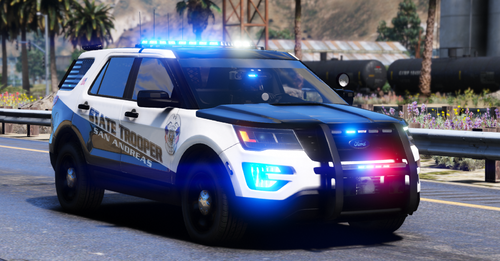 I meant the coronas specifically, I believe the textures are all the same. I've tried some carcols as well as emissive changes in visualsettings, but haven't gotten a result where the coronas match yet.
 -
Love the car, but unfortunately the non-ELS blues don't match colors with the ELS blues and it's a mood killer after being unable to fix it myself.
-
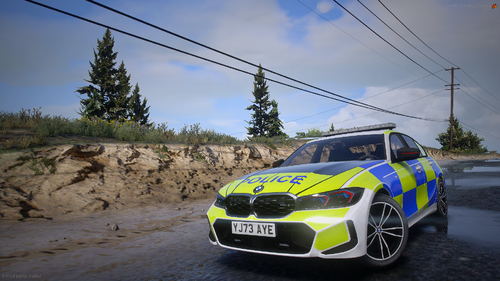 Hi, loving the car. I will be using it! There is an issue with the takedown lights, however: the takedown lights shine behind the car instead of the front. Is there a way for me to fix this?
 -
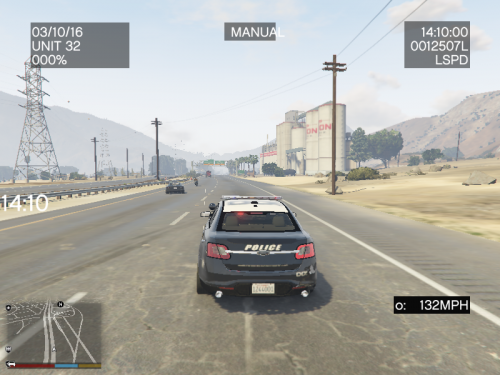 After replacing the ClearTheWay.dll file in the plugins folder, RagePluginHook doesn't read ClearTheWay.dll as a plugin anymore.
- 534 comments
- 42 reviews
-
-

- 1
-
-
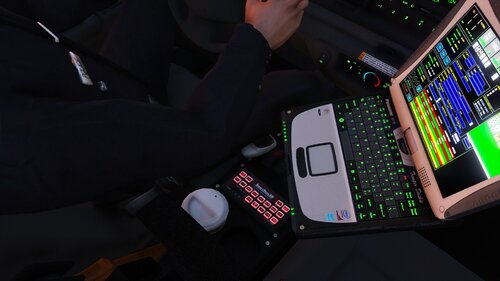 High quality audio with proper editing. Very much worth it if you like the tones.
- 7 comments
- 2 reviews
-
-

- 1
-
-
-
Unfortunate that it lost a few features, but it still moves regular cars out of the way without siren on
- 534 comments
- 42 reviews
-
-
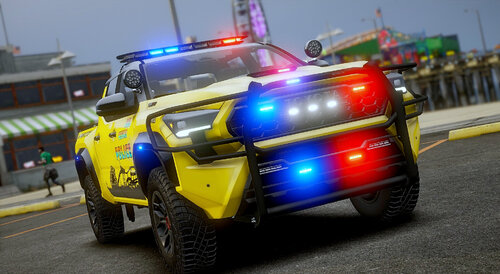 It is currently a DLC. Just drag the Vehicle Files\statecars folder into your dlcpacks and add statecars to your dlclist.xml 🙂 It'll install all the cars in one go.
- 351 comments
- 24 reviews
-
-

- 2
-
-
This pack is very, very lovely. Diligently replacing all the lights with blues right now! 😋
- 351 comments
- 24 reviews
-
-
- 1
-
-
-
 Thank you for looking into it. I went ahead and disabled the relay and found an issue with all lspdfr audio now being forced to a low volume. Probably the 0.19 default volume from XScanner. Without the relay, it doesn't seem to grab the volume from the .ini file anymore. Disabling the relay does fix the issue during pursuits with Radio Realism FR and clogged up audio files. I believe the main issue was that XScanner uses location details that are at least twice as long, since they include "south of (nearby location)", which the base LSPDFR doesn't use. So while dispatch is naming the precise location, other audio logs start queueing up.
- 639 comments
- 51 reviews
-
I really like the background chatter part of the plugin. The dispatch lady talks way too often now during callouts, though. Especially during pursuits, she talks non-stop, saying "target heading..." back to back. Also repeats starting phrases like "be advised" or "all units" two to three times before actually completing the sentence. Dispatch also expresses my code sign (1-Mary-3) as "One Mary Thirty" and "Ten Mary Thirty" after installing this. Is one of my other plugins messing with dispatch, or is there a setting I can change where she talks less? If I had to guess it might be incompatible with this, though I'm not sure yet.
- 639 comments
- 51 reviews


