


emptw1
-
Joined
-
Last visited
Everything posted by emptw1
-
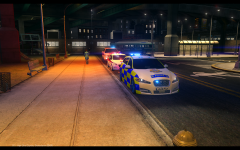
From the album: [Released] Hong Kong Police Pack
A Hong Kong police Jaguar XF Sportsbrake of the Traffic Branch Headquarters parked in front of a general duties Peugeot 508 and Mitsubishi Pajero. -
The colour of lightbar glass is typically mapped to the emerglights.png, if the glass is clear, you typically see a grey/white/see through area on the file. Just make sure that when you paint over it, you lower the opacity, otherwise you will have solid glass that can't be seen through.
-
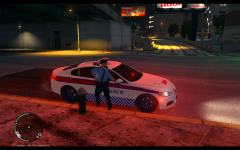
From the album: [Released] Hong Kong Police Pack
A general duties HKPF Jaguar XF. -
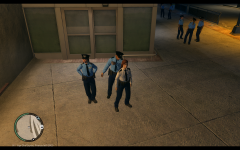
From the album: [Released] Hong Kong Police Pack
A senior constable and constable show of HKPF hats, while a station sergeant shows of the uniform of officers above the rank of sergeant. -
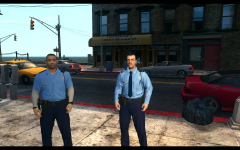 Thanks very much! Putting the writing over the badge worked out a little better than expected.
 -
From the album: [Released] Hong Kong Police Pack
-
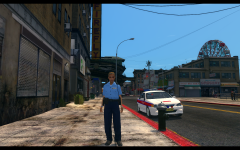
From the album: [Released] Hong Kong Police Pack
Using GTA V Ped's from Sam. -
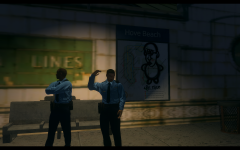
From the album: [Released] Hong Kong Police Pack
Using Sam's GTA V Peds. -
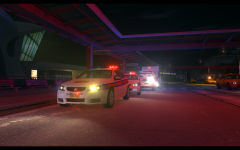
From the album: [Released] Hong Kong Police Pack
-
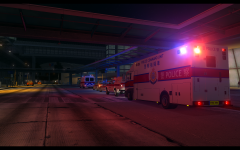
From the album: [Released] Hong Kong Police Pack
-
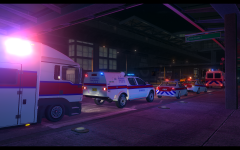
From the album: [Released] Hong Kong Police Pack
-
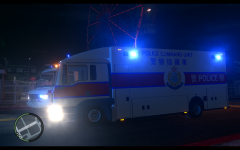 Thanks :) You have some nice textures yourself!
 -
From the album: [Released] Hong Kong Police Pack
Texture subject to change. -
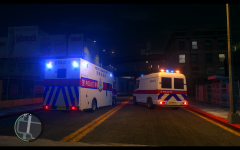
From the album: [Released] Hong Kong Police Pack
-
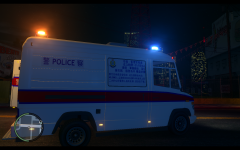
From the album: [Released] Hong Kong Police Pack
Vario van of HKPF with an announcement written on the side. -
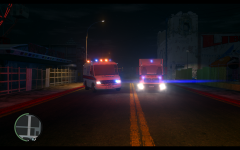
From the album: [Released] Hong Kong Police Pack
A HKPF general duties van and MAN TGL command vehicle. Texture (including lights) of MAN TGL subject to change. -
I've managed to work around it using Kinksta's other Vario model, but what tells the model to use the texture from that specific section? How does it know to get it from this area and no where else, what stage of the modelling process does that happen?
-
Hi all, I have made a skin for Kinkstas Mercedes Vario and have been trying to edit the colour of the glass on the lightbars. As you'll see in the image, the "lightbar" consists of 4 lights mounted on each corner of the roof, which are all blue. I am trying to edit them so 2 appear red and 2 appear blue, but have had no success; I think it is because the way the glass texture was mapped. (I have to attach the images because when I try to add pictures, it glitches everything out.) In the image, I have circled in yellow the part of the texture that is used for the lightbar glass colour, and I was wondering if there was anyway of changing it so 2 lights are red and 2 are blue, instead of the half and half you'll see in the picture?
-
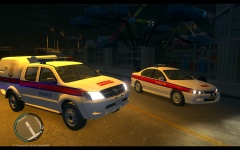
From the album: [Released] Hong Kong Police Pack
Ford and Toyota Hilux front. -
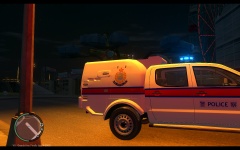
From the album: [Released] Hong Kong Police Pack
Toyota Hilux Side. -
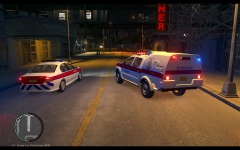
From the album: [Released] Hong Kong Police Pack
Rear View of Toyota Hilux and Ford XT GD -
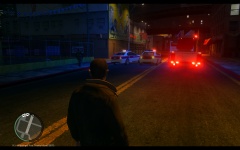 Alright, I'll get that changed, thanks for the models :).
 -
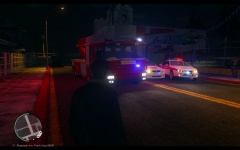
From the album: [Released] Hong Kong Police Pack
Front view of Holden Commodore, Ford Falcon and Scania ladder. -
From the album: [Released] Hong Kong Police Pack
Rear of HKPF Holden Commodore Omega 1 and Ford Falcon XR6, as well as HKFSD Scania. -
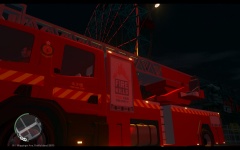
From the album: [Released] Hong Kong Police Pack
HKFSD ladder vehicle close up.


