


Inmate_Number
Members
-
Joined
-
Last visited
Everything posted by Inmate_Number
-
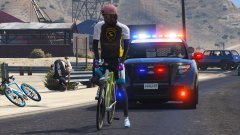 You should def put your rx2700 on that fpiu ;)pweaseeee
 -
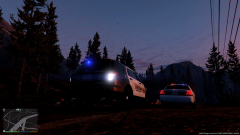
From the album: Code 3 Productions
Skin Pack I'm Working On // City Of Monroe Police Dept. // Monroe Co. Sheriff Office -
Screen Shots / WIP Progress Skins
-
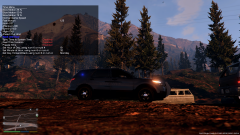
From the album: Code 3 Productions
Skin Pack I'm Working On // City Of Monroe Police Dept. // Monroe Co. Sheriff Office -
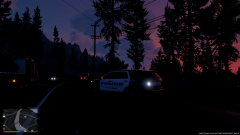
From the album: Code 3 Productions
Skin Pack I'm Working On // City Of Monroe Police Dept. // Monroe Co. Sheriff Office -
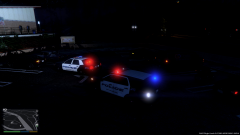
From the album: Code 3 Productions
Skin Pack I'm Working On // City Of Monroe Police Dept. // Monroe Co. Sheriff Office -
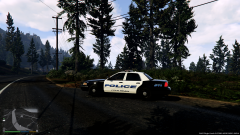
From the album: Code 3 Productions
Skin Pack I'm Working On // City Of Monroe Police Dept. // Monroe Co. Sheriff Office -
.png.825c8b41042c86512ce5f7f72f3a5e1e.png)
From the album: Code 3 Productions
Skin Pack I'm Working On // City Of Monroe Police Dept. // Monroe Co. Sheriff Office -
Everytime i try to upload images to the Gallary i receive "upload failed" the files are png...im not sure what the problem is.
-
The only message i receive is failed to upload ive tried through chrome and IE and this is the first time ive tried
-
When ever i try to upload images to my gallery album it always says upload failed...im not sure what the problem is the image file is a .bmp converted to .png can any one help?
-
.thumb.png.e436e916367dd5b950520057d9057b55.png) Great model i love the Noptic as well nice touch. Do you plan on adding lights to the pushbar and rear window?
Great model i love the Noptic as well nice touch. Do you plan on adding lights to the pushbar and rear window?- 50 comments
- 23 reviews
-
-

- 3
-
-
.thumb.jpg.4066677156985e22489bfecddc2f6c45.jpg) Great job will you be putting your imapala light bar on this cvpi as well?
Great job will you be putting your imapala light bar on this cvpi as well?- 376 comments
- 81 reviews
-
-
- 2
-
-
Ill take the template =)
-
-
-
-
-
-
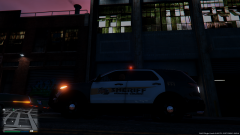 Here is a sample of my MCSO skins from Monroe, MI and the sheriff ghost skin is truly a ghost it only shows when the light hits it just right. Its a WIP so tell me what you guys think. Thank you.
© Monroe County Sheriff's Office
-
You should ask f5544 to also put his code3 21tr on it.
-
is it going to have the default light bar?? :(
-
Consider the rx2700 by bugs. :)
-
You should see if someone will let you use one of their created light bars (rx2700 bxbugs123 or the code 3 21tr f554)
-

.png.825c8b41042c86512ce5f7f72f3a5e1e.png)
.thumb.png.e436e916367dd5b950520057d9057b55.png)
.thumb.jpg.4066677156985e22489bfecddc2f6c45.jpg)


.thumb.png.e88f1892e13ddb98db35e668d465c34b.png)