


McAwesome6934
Members
-
Joined
-
Last visited
Everything posted by McAwesome6934
-
![Tawhore Looking Sexxy [Rear]](//s3-gallery.int-cdn.lcpdfrusercontent.com/gallery/album_2913/sml_gallery_52736_2913_139265.jpg)
From the album: McAwesome Pics!
Just a pretty pic of this Tahoe posing. -
From the album: McAwesome Pics!
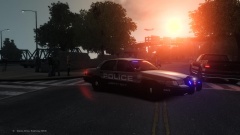
Simple Clean Slicktop Vic with sunset in background. -
From the album: McAwesome Pics!
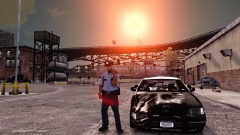
When a Weazel News reporter asked this officer what happened to the cruiser, the officer responded " No Comment." and gave this hand gesture. The Chief of Police stated that " The Vic Is Being Phased Out Anyways. " -
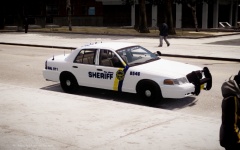 Like it! Colors are nice and go good together, new liberty looks very petite and tiny, too tiny in my opinion. Also loving sinkace's cars <3
 -
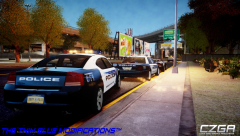 Looks great! Love that other --snip site-- (;
 -
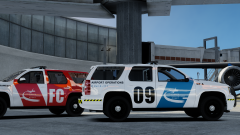 Damn those are nice! I might be able to get someone to make you a custom tahoe for these skins. If you are interested pm me(:
 -
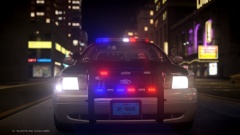 LMLE ? And what ENB do you use, looks nice!
 -
 I will relay the message(: He only makes packs though, so it will be a while if he decides to release it. Because he still has to make other cars in the pack.
 -
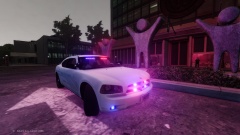
 Not a tahoe, a charger made by xxijumpxxx, not releaed at this time.
 -
From the album: McAwesome Pics!
Skin by Reibu, modified by Sheriff/Fire/EMS to be stealth. Model was made by xxijumpxx, and is unreleased at this time. -
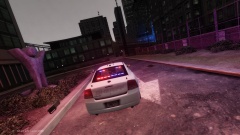
From the album: McAwesome Pics!
Skin by Reibu, modified by Sheriff/Fire/EMS to be stealth. Model was made by xxijumpxx, and is unreleased at this time. -
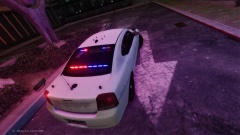
From the album: McAwesome Pics!
Skin by Reibu, modified by Sheriff/Fire/EMS to be stealth. Model was made by xxijumpxx, and is unreleased at this time. -
From the album: McAwesome Pics!
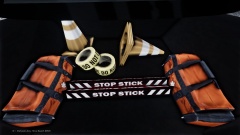
View of all that junk in that trunk! -
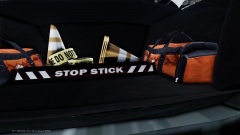
From the album: McAwesome Pics!
Another view of all that junk in that trunk! -
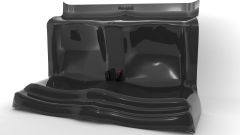 Yeah vertex, why would you upload pics to your own gallery. Geez. :P Looks great !
 -
Looks like it time to start controlling those knives.. Glad to see that the judge is being stern, and not playing into the fact that both suspects are young.
-
You spent a lot of time on this pack and it shows! Very nice job man! 5/5 All the way!(:
- 10 comments
- 5 reviews
-
-
-
Looks good, only thing I don't like is the white lines around the outside of the badge.
-
-
No, I heard from Google himself, he said that he doesn't even know. He just said it's an automated system. :P
-
-
I thought it was 1.325 seconds? :P
-
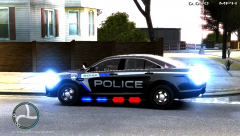 Badge should be moved up and should be 1/4 th over the hood area like this -
![Tawhore Looking Sexxy [Rear]](http://s3-gallery.int-cdn.lcpdfrusercontent.com/gallery/album_2913/sml_gallery_52736_2913_139265.jpg)

