


Dylann24
Members
-
Joined
Everything posted by Dylann24
-
Try removing the plugin: Keep Calm. Also the crash within the log you sent looks random, not much you can do to prevent it as GTA was not made to be modded so issues are prone to occur. Glad to hear you're enjoying LSPDFR so far!
-
Your game might be struggling to hook, in which case launch GTA on it's own (without Rage) and load into story mode. Once you load in alt+tab out and launch rage from your GTA main directory.
-
Reinstall RageNativeUI making sure you're downloading the latest build.
-
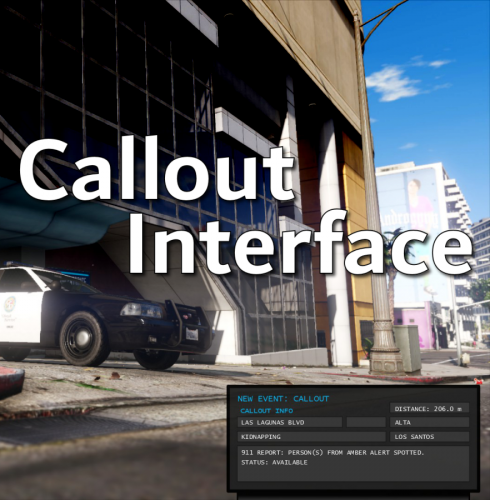 Brilliant job as always Opus. I love the UI and the overall functionality. I'm excited to see where you take this!😄
- 446 comments
- 46 reviews
-
-

-

- 5
-
-
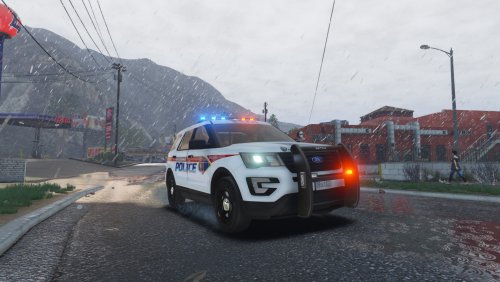 As Matthew Skeads' biggest fan, I can assure you that this is some of his best work. My lights are absolutely stunning, and my cars look 100x better as a result. Thank you very much.
- 109 comments
- 20 reviews
-
-
- 1
-
-
Reinstall RageNativeUI making sure you’re downloading the latest build.
-
In your main directory there will be a file called RagePluginHook.log, please attach that here. Thanks.
-
Install Heapfile Limit Adjuster and Packfile Limit Adjuster.
-
Your issue is originating from RageNativeUI, reinstall this making sure you're on the latest build.
-
Why are you telling them to remove 686Callouts, RegularCallouts, HWYCallouts and Fort Zanduco? These are all up to date.
-
In your main directory there should be a file called RagePluginHook.log, can you attach that here please.
-
Not too sure which, I am just aware of this happening numerous times due to a user using this trainer.
-
You're more than welcome!
-
If what Cyan suggested doesn't solve it try spawning the policeb model in game through the RPH console, type 'Spawn <model>' to see if the model works, if it works fine try disabling Ambient Spawn. Go to GTAV/lspdfr/lspdfr.ini and find the line that says 'AmbientSpawn.DisableRandomUnits = false' and change the 'false' to 'true'.
-
Hey there, can you attach a file called RagePluginHook.log. This can be found in your main directory.
-
Launch GTA without RPH, once loaded in alt tab out and launch RPH. If it crashes: Rename your mods folder to _mods Remove a file called dinput8.dll from your main directory to your desktop. Rename lml to _lml and vfs.dll to _vfs.dll If all else fails verify your game files.
-
Ah okay, I've always seen it as standard practise, but I guess not. Thank you for clarifying that! 😄
-
Your issue is because of RageNativeUI reinstall this making sure you are on the latest build.
-
Glad to hear that solved your issue!
-
Fully aware of this, hence why I told them to reinstall it. Setting the threshold to 60,000 should help prevent crashes in the future, that's why I advised them to do it .
-
Reinstall RageNativeUI and also hold shift while launching, go to general and set your PluginTimeoutThreshold to 60000.
-
Simple trainer is a great trainer along with Menyoo. Menyoo has a better UI and I would highly suggest it!
-
If you're referring to the first step then most likely if it isn't working normally.
-
What trainers are you using? I am aware of this issue occurring with the Enhanced Native Trainer. Glad to hear the pup got her tea 😄.
-
Your random crashes are originating from a feature called ambient spawn. To disable this feature go to: GTAV/lspdfr/lspdfr.ini. Find the line that says "AmbientSpawn.DisableRandomUnits = false" and change 'false' to 'true'.
