

10 DAVID 01
Members
-
Joined
-
Last visited
Everything posted by 10 DAVID 01
-
-
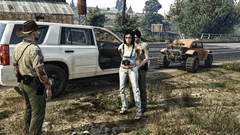
From the album: LSPDFR .4
one in custody after traffic stop for unroadworthy vehicle, discovered lsd on subject. -
-
-
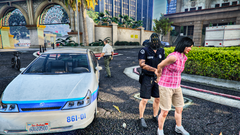
From the album: LSPDFR .4
trespassing. -
-
From the album: LSPDFR .4
to take you down!! -
From the album: LSPDFR .4
-
From the album: LSPDFR .4
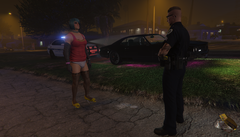
passed the fst's cited and released.... -
From the album: LSPDFR .4
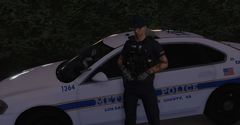
Ready to rock... -
From the album: LSPDFR .4
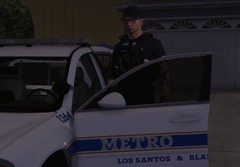
For them nasty night shifters.... -
-
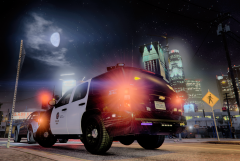
From the album: LSPDFR .4
-
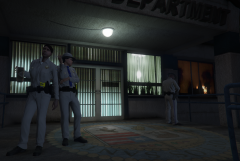
From the album: LSPDFR .4
-
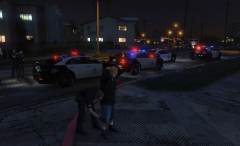
From the album: LSPDFR .4
when you try to show out and do a burn out infront of the goon squad in the hood..... -
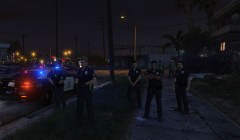
From the album: LSPDFR .4
#backupstillonfleek -
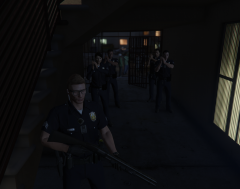
From the album: LSPDFR .4
Davis, report of shots fired.... -
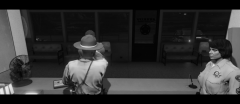
From the album: LSPDFR .4
Drug swab at station... -
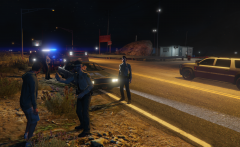
From the album: LSPDFR .4
-
-
-
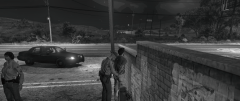
From the album: LSPDFR .4
-
confirmed this does work.
-
fyi trying to get to the ingame keybindings for lspdfr? this is what occurred! i know how to edit them with notepad outside the game, so i did. just figured this should be mentioned?
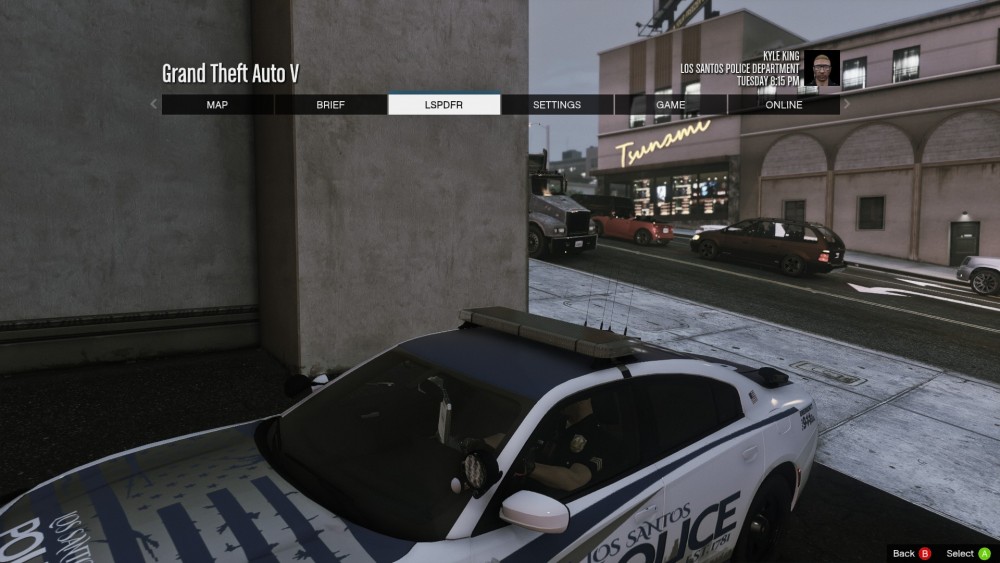
-
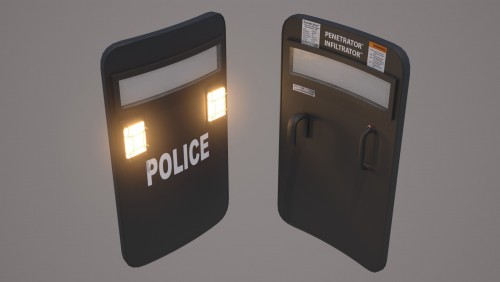 does this need to be added to the agency files in the custom folder? if so what spot on each xml?
- 36 comments
- 3 reviews